
How to Configure Network Thermal Printers
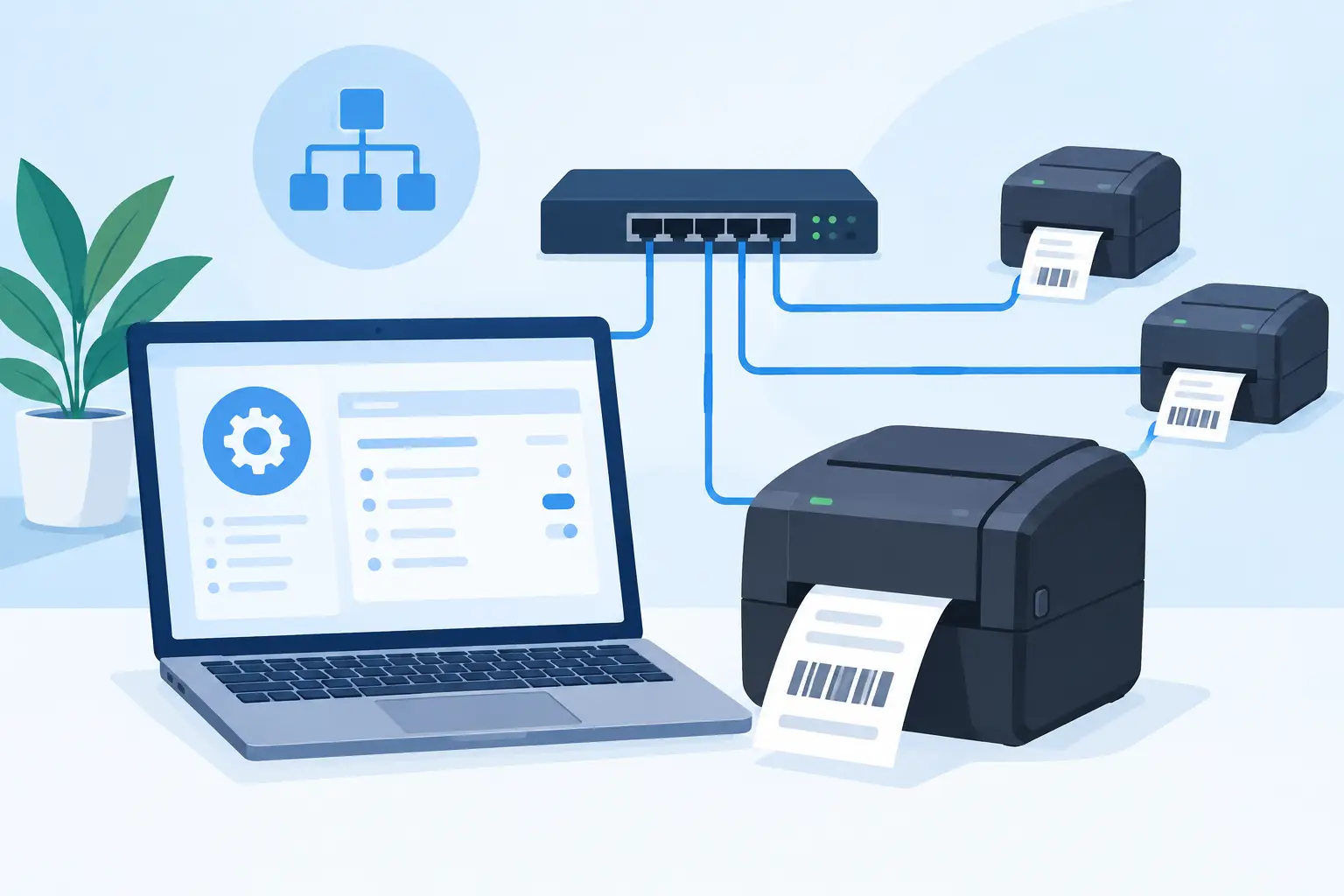
A printer that works from one workstation but disappears during a busy shipping run is not a minor IT issue. It can stop receiving, delay dispatch, and force staff back to handwritten labels. To configure network thermal printers reliably, you need more than a successful test page. You need a stable network identity, the right print language, and a controlled path from the business system to the device.
For warehouses, retail counters, production lines, and ecommerce operations, the goal is simple: send the correct label to the correct printer every time, without requiring an operator to download files, select a device manually, or restart hardware under pressure.
Start with the printer’s role and connection method
Before changing network settings, define what the printer is expected to do. A 4-inch shipping-label printer near the packing bench has different requirements from a small desktop unit printing shelf labels, or an industrial printer producing serialized asset tags all day.
Confirm the printer model, supported command language, and physical connection. Many thermal printers support Ethernet, Wi-Fi, USB, or a combination. Ethernet is generally the preferred choice for fixed operational stations because it is predictable and less exposed to wireless signal changes. Wi-Fi can work well for mobile carts or locations where cabling is impractical, but it requires stronger access-point coverage and more deliberate network management.
Also identify the printer language. Zebra printers commonly use ZPL, while many TSC and compatible devices use TSPL. Some devices can emulate more than one language, but an incorrect emulation setting can produce blank labels, unreadable commands, or unexpected output. Your label template and the printer configuration must agree.
Give each printer a stable network address
A network printer needs an IP address that does not change unexpectedly. If a DHCP lease changes, the computer, print server, or cloud-to-local connector may continue sending jobs to an old address. The printer looks offline even though it is powered on and connected.
There are two sound approaches: assign a static IP address on the printer itself, or create a DHCP reservation in your network router or DHCP server. A DHCP reservation is often easier for IT teams because address management remains centralized. A static address can be practical in smaller, controlled environments.
Whichever method you choose, record the printer name, location, MAC address, IP address, and model. Use names that make operational sense, such as `WH1-PACK-01` or `STORE3-RETURNS`. Avoid generic names like `Zebra Printer` when several devices may be installed.
After assigning the address, print the configuration label from the device or access its management page. Verify the IP address, subnet mask, gateway, and DNS settings. The gateway matters when print jobs originate from a service outside the local subnet. A printer with the wrong subnet mask may look reachable from one machine but fail from another network segment.
Check basic network reachability
From a workstation on the same network, test whether the printer responds at its assigned IP address. Then test from the computer or service that will actually submit print jobs. These are not always the same thing.
If the printer responds locally but not from the print application host, check VLAN rules, firewall policies, and routing between network segments. Warehouses often separate office devices, handheld scanners, guest Wi-Fi, and production equipment. That separation can be sensible, but the required print traffic must be allowed intentionally.
Select the right printing path
Network thermal printers can receive jobs through several methods. The best choice depends on the printer model, operating system, and application architecture.
Raw TCP printing, often using port 9100, is common for direct ZPL and TSPL output. It is fast and suitable when your software generates printer-ready commands. LPR/LPD and IPP may be used in managed print environments or when operating-system print queues are preferred. A vendor driver can help with general desktop printing, but it may introduce formatting changes that are undesirable for barcode labels.
For operational label printing, direct command output usually offers more control. The application sends the label instructions, including size, barcode symbology, text position, and print density, directly to the printer. This reduces reliance on a workstation-specific driver configuration.
The trade-off is that templates must be designed for the target language and device capabilities. A ZPL template should not be sent unchanged to a TSPL-only printer. Standardizing printer languages by site, workflow, or device group reduces long-term support work.
Configure label dimensions before testing production jobs
A label that prints but does not align is not configured correctly. Set the physical media dimensions in the printer and in the label template. Include label width, label height, gap or black-mark sensing, print orientation, darkness, and print speed.
Run media calibration after loading a new label type, changing from gap labels to black-mark labels, or moving to a different roll width. Calibration allows the printer to detect where one label ends and the next begins. Without it, labels may drift, skip, or print across the gap.
Start with a conservative print speed and darkness setting. Increasing darkness can improve barcode contrast, but excessive heat can blur small text, cause barcode bars to spread, and shorten printhead life. Faster printing is useful for high-volume shipping stations, but only after labels scan consistently at normal operating speed.
Use real production label stock during testing. A template calibrated on temporary test media may fail when applied to a thicker synthetic label, a different adhesive, or a preprinted thermal stock.
Connect cloud workflows to local devices safely
A browser or cloud application cannot always reach a local network printer directly. Corporate firewalls, private IP addresses, and browser security restrictions are designed to prevent unsolicited cloud access to local hardware. Trying to bypass those controls with open inbound ports creates unnecessary risk.
A local desktop bridge is a more practical architecture. It runs on a workstation or local server that can reach the printer, receives authorized jobs from the cloud platform, and sends them to the selected local or network-connected device. This approach avoids dedicated IoT print boxes while maintaining a controlled connection between cloud workflows and physical hardware.
TopSale uses TopBridge for this purpose, allowing browser-based label workflows and connected business systems to print through a local application to supported thermal printers. The bridge device should remain powered on, signed in where required, and connected to the same network path as the printer.
For larger deployments, avoid making one employee laptop the single point of failure. Use a managed workstation or small on-site server for critical print stations. Configure automatic startup, apply operating-system updates during planned windows, and document which bridge instance is assigned to each printer group.
Test the full workflow, not only the printer
A printer self-test proves that the hardware can print. It does not prove that your ERP, ecommerce platform, spreadsheet workflow, or browser label editor is sending the right data.
Test a complete job using representative records. Include long product names, order numbers, accented characters, non-Latin text if applicable, multiple barcode types, and the largest expected data values. Verify that the barcode scans with the equipment used on the floor, not just with a phone camera.
Character encoding deserves special attention. If international names or multilingual product data appears as question marks or corrupted symbols, the issue may be the printer code page, template encoding, or font support. Configure the appropriate character set and test actual business data before rollout. This is especially relevant for global fulfillment operations that print addresses, product descriptions, or compliance labels in multiple languages.
Solve the failures that cause repeat tickets
When a network thermal printer fails, start with the job path. Is the application creating the job? Is the local bridge receiving it? Can that bridge reach the printer IP address? Is the printer online, loaded with media, and configured for the correct language? A disciplined sequence prevents wasted time changing settings that were never the cause.
Common symptoms provide useful clues. Blank labels often indicate a language mismatch, incorrect label commands, or unsuitable media settings. Partial labels can point to a wrong width or height. Jobs stuck in a queue may indicate an offline printer, an unreachable IP address, or a blocked port. Intermittent failures usually warrant checking Wi-Fi stability, DHCP changes, power-saving settings, and duplicate IP addresses.
Document the working configuration once the workflow is stable. Keep the printer IP, connection method, port, command language, media profile, template version, and assigned workflow together. That record turns a future replacement or site expansion into a repeatable setup rather than another troubleshooting project.
The best printer configuration is the one operators do not have to think about. When a label is generated from the system that runs the work and arrives correctly at the right device, teams can keep receiving, packing, producing, and shipping without hardware becoming the bottleneck.