
CSV Batch Label Printing That Scales With Orders
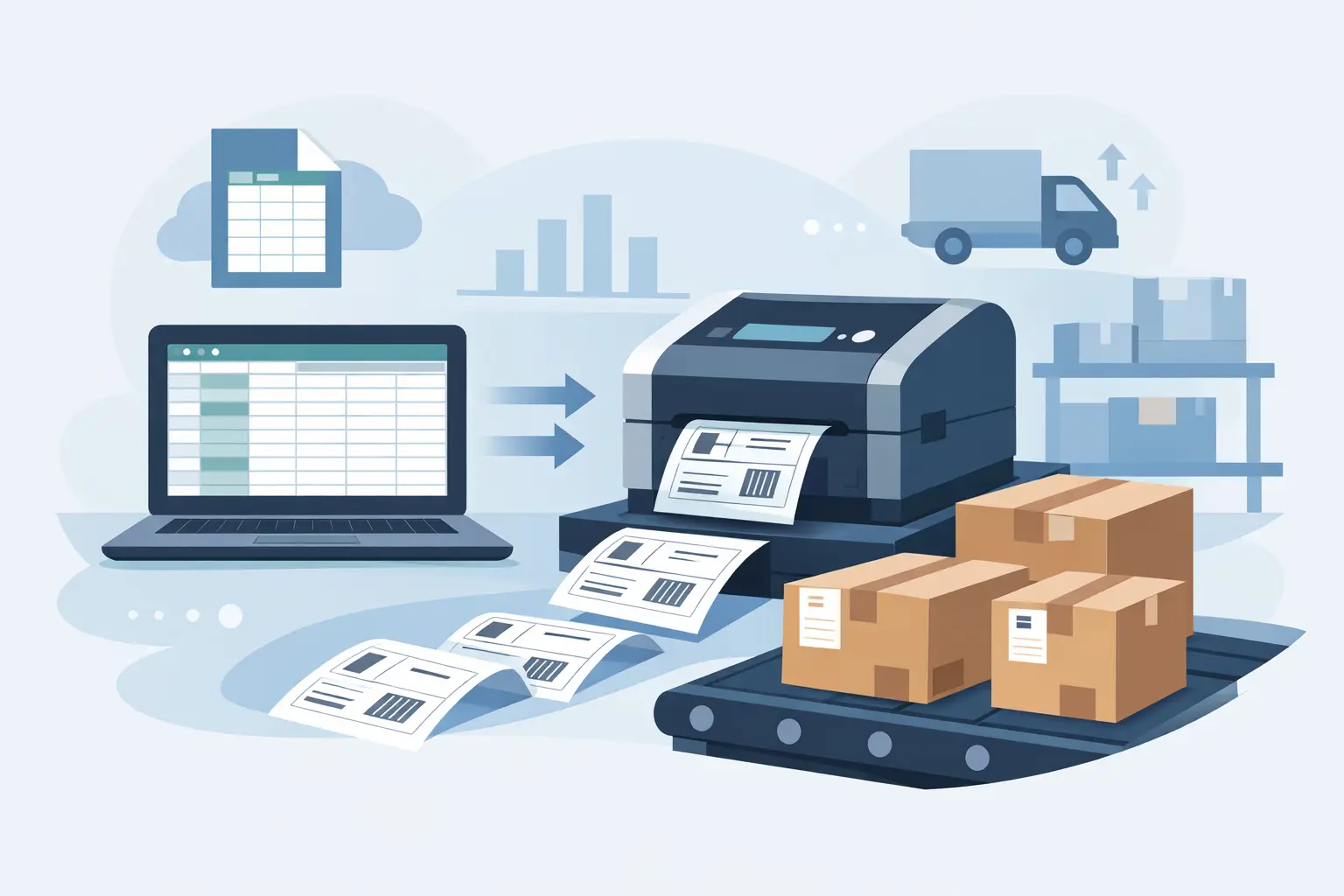
A spreadsheet full of orders should not create an afternoon of copy-and-paste work at the printer. CSV batch label printing converts each row of operational data into a correctly formatted thermal label, so a receiving team, warehouse operator, or ecommerce administrator can produce hundreds of labels from one controlled print job.
The result is more than speed. When product codes, lot numbers, locations, quantities, and carrier references move directly from a CSV file into a label template, teams reduce transcription errors and keep the physical workflow aligned with the system of record. The challenge is making that connection dependable across real printers, real data, and real production deadlines.
Where CSV Batch Label Printing Fits
CSV files are often the practical handoff point between systems. An ERP may export inventory records, a warehouse management process may produce replenishment data, or an ecommerce team may download an order report. Not every workflow needs a custom integration before it can print labels accurately.
For operations teams, a CSV-based workflow is especially useful when volumes change, templates are already defined, or multiple people need to prepare print data without writing code. It supports common jobs such as shelf labels, carton labels, bin locations, asset tags, serialized product labels, price labels, and shipping documentation.
The trade-off is that a CSV file is only as consistent as the data inside it. Batch printing works best when the file format is treated as an operational standard, not an informal spreadsheet that people edit differently each week. Clear columns, predictable values, and a validated template prevent the batch process from becoming another source of exceptions.
Start With a Data Structure That Matches the Label
Every label element needs a source column. Before building a template, decide exactly what the label must communicate at the point of use. A warehouse location label might require `location_code`, `zone`, and a scannable barcode. A manufacturing label may also need `item_number`, `lot_number`, `production_date`, and `quantity`.
Use descriptive, stable column headers. `sku`, `product_name`, and `barcode_value` are easier to map and maintain than vague headers such as `field1` or `code`. Keep one record per row. If one row represents a carton, do not mix individual-unit data and carton-level data in the same fields unless the label workflow explicitly requires both.
Data formatting matters as much as the field names. Leading zeroes in item IDs must be preserved. Dates should follow one agreed format. Barcode values should not contain accidental spaces. If a label includes quantities or prices, confirm whether the output needs fixed decimal places. These small decisions prevent scan failures and confusing labels after the job has already reached the floor.
Protect values that spreadsheets tend to change
Spreadsheet applications can automatically alter values that must remain exact. A UPC, SKU, postal code, or serial number may lose leading zeroes. Long numeric strings can display in scientific notation. Dates can shift formats depending on a user’s regional settings.
For identifiers, use text fields from the beginning and inspect the exported CSV before printing. A quick review of the raw file can expose formatting changes that are not obvious in a spreadsheet view. This is particularly important for serialized inventory, regulated products, and labels that feed downstream scanning processes.
Build One Template, Then Map the Fields
The label template should be designed once and reused across batches. In a browser-based label editor, place fixed elements such as company information, handling instructions, borders, and icons in the layout. Then add variable text, barcode, QR code, or image elements that pull their values from CSV columns.
Barcode configuration deserves deliberate attention. Select the barcode symbology required by the scanner and receiving system, then confirm that the source data meets its requirements. Code 128 is common for flexible alphanumeric values. UPC and EAN have more specific numeric structures. QR codes can carry larger or more complex payloads, but they should only contain data that users or systems actually need.
Print a small test batch before releasing a large run. Check the readable text, barcode quiet zones, label dimensions, and print darkness. Scan labels using the equipment that will be used in the operation, not only a phone camera. A barcode that looks acceptable on screen can still perform poorly when printed at a low density, placed too close to an edge, or produced on the wrong media.
Send Jobs From the Cloud to Local Printers
The difficult part of cloud label printing is not creating a label. It is getting a browser-based workflow to reliably reach the thermal printer beside a packing station, receiving dock, or production line.
A local print bridge removes that gap. TopSale uses TopBridge to connect cloud-based print jobs with locally connected or network-accessible printers, without requiring a separate IoT print box. The operator can work from a browser, select the intended printer, and send the batch through a desktop application that communicates with the local device.
This architecture matters when printers are distributed across sites or departments. A central operations team can maintain label designs and data rules, while each location prints to the devices already installed on its network. It also avoids adding another hardware appliance to purchase, configure, monitor, and replace.
Match the output to the printer environment
Thermal printers are not interchangeable simply because they all print labels. Printer language support, media dimensions, print resolution, connection method, and character encoding can affect the final output. A template intended for a 4-inch shipping printer will not automatically fit a small jewelry tag printer.
Choose a platform that can work with the command languages used by your device fleet. Direct TSPL and ZPL support is valuable for organizations running TSC, Zebra, Xprinter, Brother, and other established thermal printer environments. It gives IT teams a clearer path to standardizing output while allowing operations teams to keep using proven hardware.
International operations need an additional check: character encoding. Names, addresses, product descriptions, and compliance text may contain accented characters, Asian scripts, or other multilingual content. If encoding is not configured correctly, labels can print with missing characters or unreadable symbols. Test real multilingual data, not placeholder English text, before deployment.
Put Controls Around Batch Size and Exceptions
A batch of 20 labels can usually be reviewed manually. A batch of 2,000 requires process controls. Start by confirming the number of CSV rows and the expected number of printed labels. If some rows require multiple copies, make the quantity logic explicit rather than relying on an operator to repeat the print job.
Use a naming convention for files and print runs that makes traceability easy. Include the process, site, date, and batch identifier where appropriate. If a label run must be reprinted, the team should be able to identify the original file, template version, and printer without guessing.
Exception handling should be planned before the printer stops. Common issues include an offline device, depleted label stock, a changed column header, an invalid barcode value, or a row with missing data. The best response depends on the workflow. For a shipping line, it may be better to stop the affected records and continue valid ones. For a serialized production batch, stopping the full job may be safer to prevent a mismatch between labels and goods.
Make CSV Printing a Repeatable Operational Process
Once a CSV workflow is stable, document the few decisions that keep it stable: the approved export format, required headers, template owner, supported printers, media specifications, test procedure, and reprint policy. This does not need to become a lengthy manual. A short operating procedure can prevent a new team member from printing the wrong format during a peak period.
CSV batch label printing is also a useful stepping stone. It gives teams immediate automation from existing spreadsheets while preserving a path to deeper ERP, Shopify, Odoo, or SDK-based workflows later. The same template and printer infrastructure can support both approaches as volume and integration requirements grow.
The practical goal is simple: a row of trusted business data should become a label that scans, reads clearly, and arrives at the right printer without extra hardware or manual reconstruction. When that process is dependable, the label printer stops being a daily bottleneck and becomes part of the operating system behind the work.