
Excel Label Printing: How to Print Barcode Labels from Excel or CSV
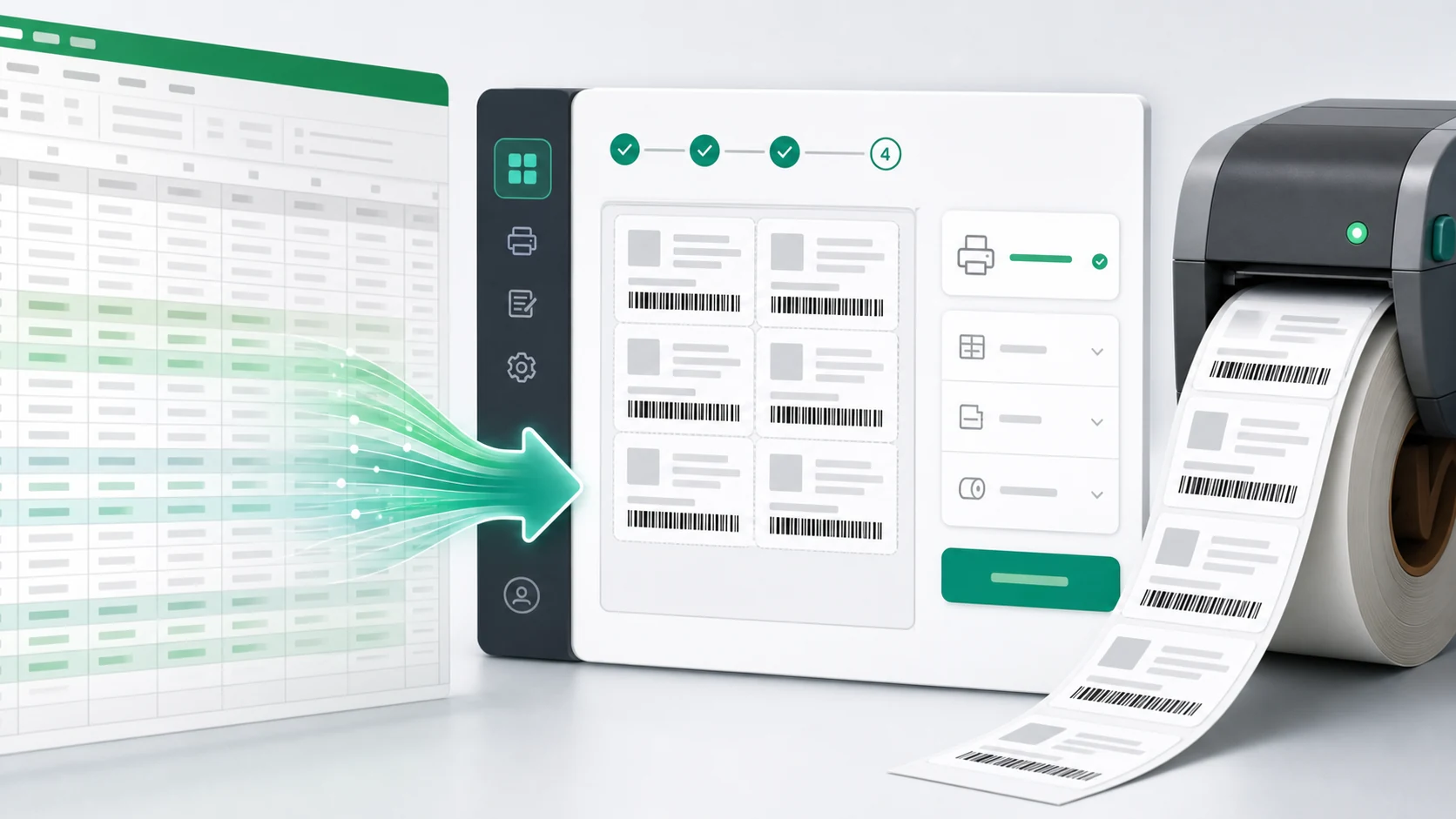
Excel label printing makes it faster to create barcode labels when you have hundreds of products, orders, or warehouse items. TopSale lets you upload Excel or CSV data, map spreadsheet columns to label fields, and print multiple unique barcode labels in one workflow.
Instead of copying data into labels one by one, you can use an existing Excel .xlsx or CSV file as the data source for batch printing.
How does Excel label printing work?
- Open the Self-Service Portal and select a label template.
- Upload your Excel or CSV file.
- Map spreadsheet columns to the corresponding label fields.
- Review the data and label preview.
- Send the completed labels to your supported printer.
Who is this for?
- Warehouses printing product labels from inventory exports
- Logistics teams creating shipping labels from order lists
- Manufacturers labelling batches from production spreadsheets
- Retail teams managing product, price, and barcode data in Excel
- Any team where label data already exists in a spreadsheet
This Excel label printing workflow is especially useful for businesses that manage variable product, inventory, shipping, or warehouse data in spreadsheets.
It reduces repetitive manual entry and lets one reusable label template generate many different labels from the same data source.
Learn more about the complete Excel label printing workflow, or try Excel Datasource Label Printing.