
How to Print Shopify Product and Order Labels with TOPSALE
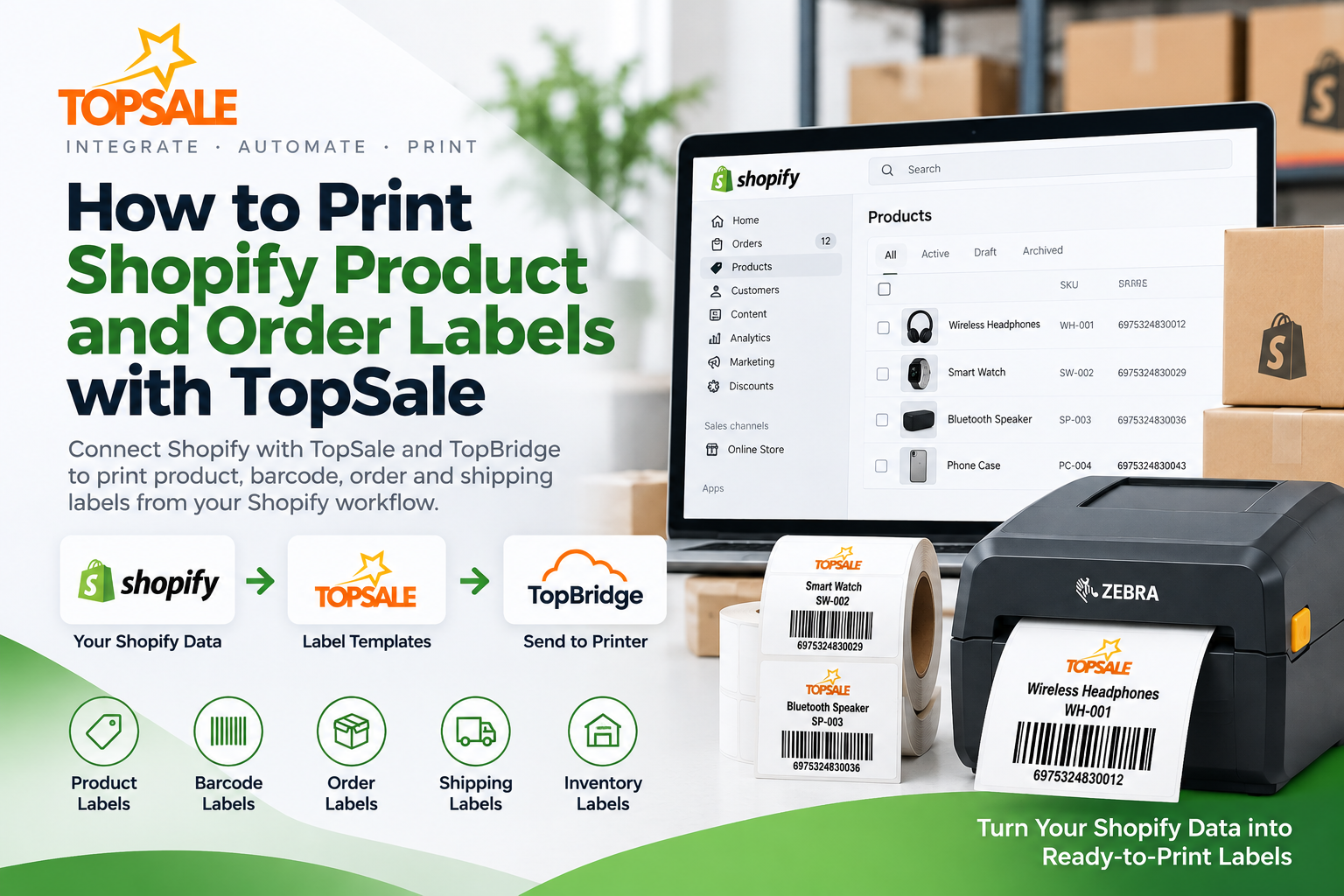
Shopify label printing with TOPSALE lets merchants create and print product, barcode, order and shipping labels using Shopify data. TOPSALE manages the cloud label workflow, while TopBridge connects the browser-based print job to compatible local or network thermal printers.
Instead of exporting Shopify data, rebuilding labels manually, and switching between separate tools, the workflow can keep label creation and printing closer to your Shopify operations.
Learn more about the TopSale Shopify label printing app.
What is Shopify label printing?
Shopify label printing means using product, order, or fulfilment data from Shopify to generate labels for your business workflow.
Depending on your setup, labels may include:
- Product names
- SKUs
- Barcode values
- Prices
- Order numbers
- Shipping information
- Inventory references
- Other Shopify data used in your label templates
The goal is to reduce manual re-entry and make it easier to turn Shopify data into printable labels.
How TopSale connects Shopify to your printer
TopSale combines Shopify data with reusable label templates and TopBridge printer connectivity.
A typical workflow is:
- Select the relevant Shopify data.
- Choose or prepare a TopSale label template.
- Generate the label content.
- Send the print job through TopBridge.
- Print to a supported local or network thermal printer.
This creates a cloud-to-local workflow without requiring users to repeatedly download and reopen label files.
How to print labels from Shopify
1. Connect your Shopify workflow
Start with the TopSale Shopify label printing integration.
This provides the connection between Shopify data and the TopSale printing workflow.
Learn more from the Shopify label printing page.
2. Choose a label template
Select a reusable TopSale template for the type of label you need to print.
A template can include:
- Product name
- SKU
- Barcode
- Price
- Order reference
- Shipping information
Using reusable templates helps keep label layouts consistent.
3. Select the data to print
Choose the Shopify products, orders, or records that need labels.
For example, a merchant may need to print:
- Product barcode labels
- Retail price labels
- Order labels
- Shipping labels
- Inventory labels
4. Connect TopBridge
TopBridge connects the TopSale cloud workflow to a supported local or network thermal printer.
Once TopBridge is configured, the print job can be routed to the selected device.
5. Print the labels
Review the label output and send the job to the connected printer.
This allows Shopify data to be used in the label workflow without recreating every record manually.
What labels can you print from Shopify?
Product labels
Use Shopify product data to create labels containing:
- Product name
- SKU
- Barcode
- Price
Barcode labels
Generate barcode labels using values stored in Shopify.
These can support:
- Retail scanning
- Inventory workflows
- Product identification
Order labels
Order information can be used to generate labels for fulfilment and internal processing.
Shipping labels
Where required, shipping-related information can be included in the printing workflow.
Inventory labels
Inventory teams can use Shopify product data to support stock identification and warehouse labelling workflows.
TSPL and ZPL printer support
TopBridge supports professional thermal printing workflows, including TSPL and ZPL printer languages.
TopSale workflows can be used with supported printers from brands such as:
- TSC
- Zebra
- Xprinter
- GoDEX
- Citizen
- Brother
Printer compatibility can vary by model and setup.
Why use Shopify label printing with TopSale?
Reduce manual data entry
When product and order information already exists in Shopify, teams do not need to retype the same information into another application before printing.
Reuse label templates
Saved templates allow the same label design to be used across many products and orders.
Keep the workflow connected
TopBridge provides the local printer connection while TopSale manages the cloud label workflow.
Support professional thermal printers
Businesses can use supported thermal printers for product, barcode, warehouse, and fulfilment label workflows.
Example: printing Shopify product labels
Imagine a merchant has 200 active products in Shopify.
Each product already contains:
- Product name
- SKU
- Barcode
- Price
Instead of manually creating 200 different labels, the merchant can use a reusable template and populate it with Shopify data.
The labels can then be routed through TopBridge to the supported thermal printer.
Shopify label printing with TopBridge
A simplified workflow looks like:
Shopify → TopSale → TopBridge → Thermal Printer
Shopify provides the business data, TopSale manages the label workflow, and TopBridge connects the print job to the local or network printer.
Get started with Shopify label printing
If your team already manages product, order, and inventory data in Shopify, connecting label printing to the same workflow can reduce repetitive work and make printing easier to manage.
Explore the full Shopify label printing workflow to learn about templates, TopBridge connectivity, and supported thermal printers.