
Brother Label Printing with TopBridge
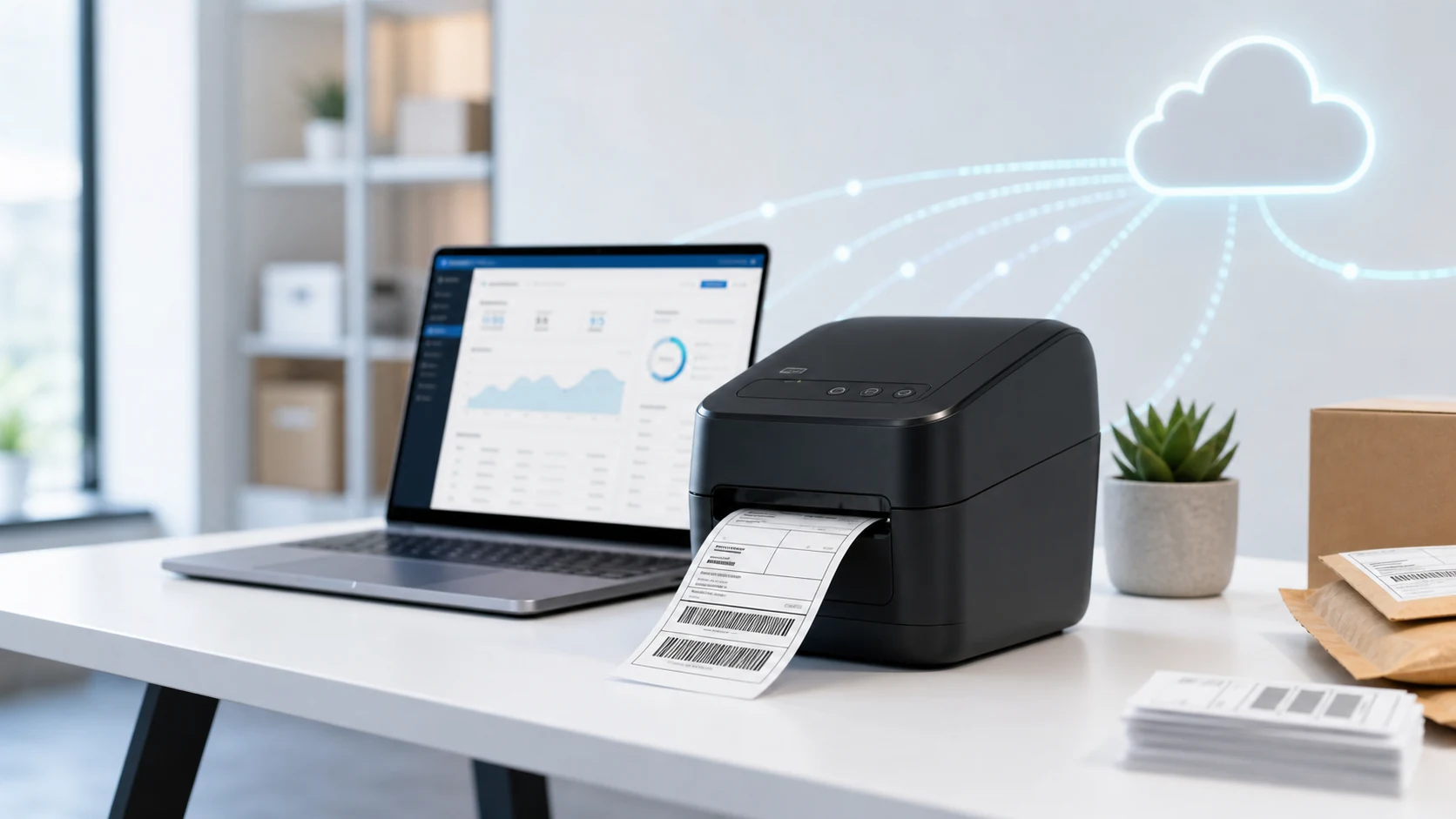
Brother label printing with TopBridge lets TopSale users send barcode, product, and shipping label jobs from the browser to supported Brother printers. This creates a simpler cloud-to-local printing workflow without manually downloading label files or switching between separate printing tools.
What’s new
- Brother printer support through TopBridge — connect supported Brother printers to your TopSale printing workflow
- Support across major Brother printer series, including QL, TD, P-touch (PT), RJ, PJ PocketJet, and VC
- Automatic component setup — when Brother is selected as the printer type, the required printer component can be installed through the guided setup process
How Brother label printing works
Brother integration in TopBridge uses Brother’s COM component SDK.
The first time you select Brother as your printer type in TopBridge, follow the on-screen prompts to install the required component. Once setup is complete, TopBridge can connect TopSale cloud print jobs to the supported Brother printer.
For technical information about the underlying Brother component, see the Brother b-PAC SDK documentation.
Getting started with Brother printers
Download the latest version of TopBridge from the Self-Service Portal.
Then:
- Install or update TopBridge.
- Connect your supported Brother printer.
- Select Brother as the printer type.
- Follow the one-time component setup prompts.
- Send a test label from TopSale.
For supported printer workflows and configuration details, visit the TopBridge label printing page.
You can also explore TopSale label printing software for barcode, product, warehouse, and shipping label workflows.
TopBridge continues to expand printer compatibility so businesses can connect their existing printing hardware to TopSale cloud label workflows.