
Cloud Label Printing Software for Faster Operations
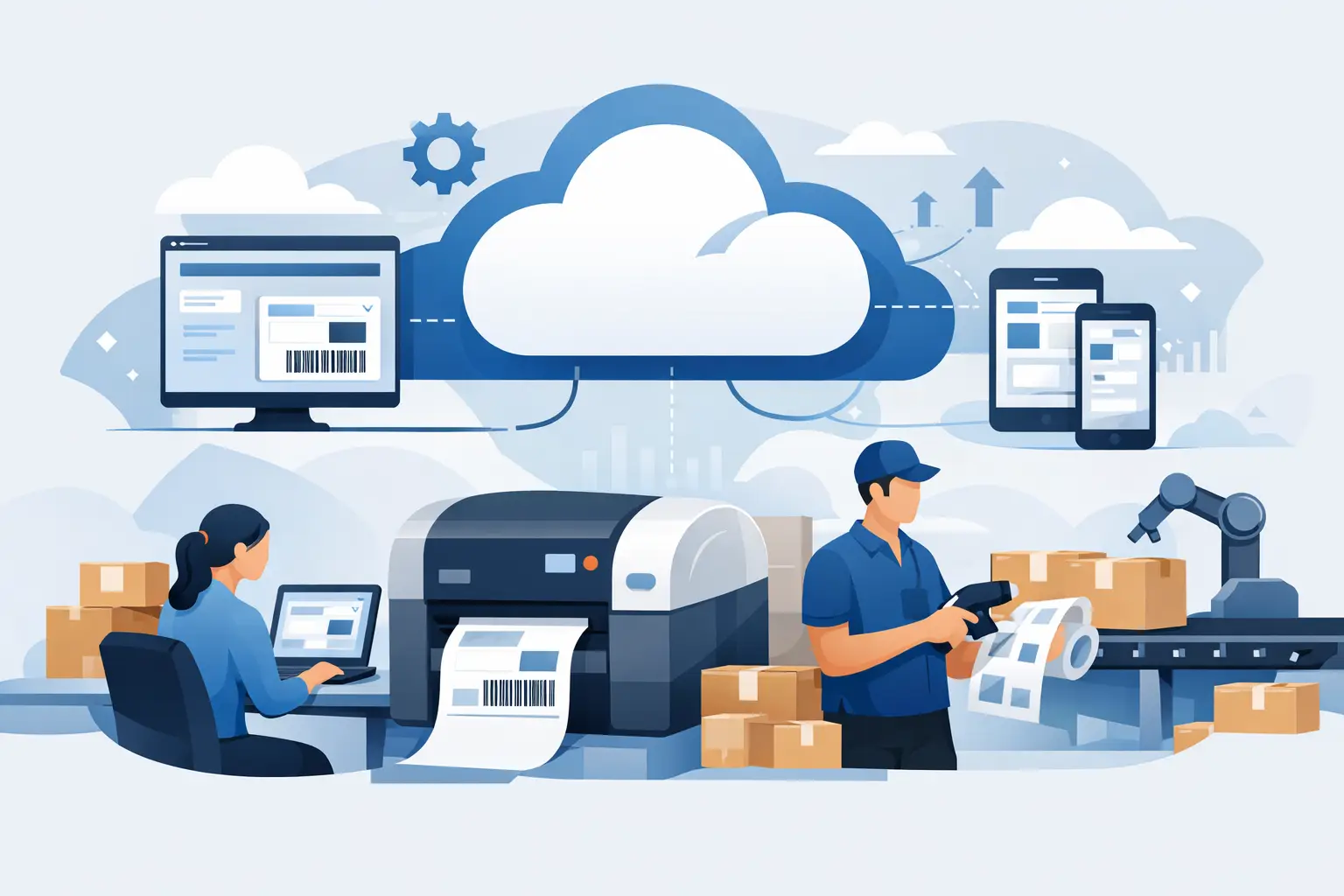
A shipping cutoff is approaching, a warehouse team is picking orders, and someone needs a new batch of labels immediately. That is where cloud label printing software earns its place. It turns label production from a disconnected desktop task into an operational workflow connected to the systems your team already uses.
For inventory, ecommerce, logistics, manufacturing, and retail teams, the objective is not simply to design a label in a browser. It is to reliably move the right data from an ERP, storefront, spreadsheet, or internal application to the right thermal printer at the right workstation. If that connection fails, labels stop, orders wait, and staff resort to manual workarounds.
What Cloud Label Printing Software Actually Solves
Traditional label printing often depends on locally installed software, individual printer drivers, shared files, and a person who knows which computer can reach which printer. That setup may work for a single desk and one printer. It becomes difficult to manage when multiple sites, printer models, user roles, and data sources are involved.
Cloud-based label printing centralizes label templates and print workflows. Users can build or update labels in a browser, populate them with live business data, and send print jobs to local or network-connected printers. The cloud manages the design and workflow layer, while a local connector handles the practical requirement that a browser cannot directly control a thermal printer on a private network.
The result is a clearer path from operational data to physical output:
- A business system, spreadsheet, or user supplies the label data.
- A cloud label template formats that data into text, barcodes, QR codes, images, and fields.
- A local print bridge receives the job and sends it to the selected printer.
- The printer produces labels using the correct size, density, language, and command protocol.
This architecture matters because cloud access alone is not enough. A useful platform must also account for the printers already on your floor, the networks they use, and the standards they expect.
Why Browser-Based Design Is Only Half the Job
A browser label editor gives operations teams more control. A warehouse manager can adjust a carton label, a retail team can update a price tag, and an ecommerce administrator can add an order field without waiting for a locally installed design application to be updated on every workstation.
But design flexibility is valuable only when the final print is predictable. A label that looks correct in a preview can still fail in production because of an incorrect printer resolution, unsupported font, poor barcode sizing, or a character-encoding mismatch. The practical test is whether the label scans, fits the stock, and prints consistently on the device that will run the job every day.
A capable cloud platform should therefore support common thermal-label requirements, including configurable label dimensions, barcode and QR code generation, variable fields, image handling, and printer-specific output. It should also make template reuse straightforward. Teams should not rebuild a shipping label, shelf label, or serialized asset tag every time a workflow changes.
Connect Business Data Without Adding Manual Steps
The most expensive label process is often not the printing itself. It is the copy-and-paste work before printing begins. Staff export an order file, clean columns, enter item details into a template, and hope no one changes a SKU, lot number, or address along the way.
Cloud label printing software reduces that exposure by connecting label data directly to the source. For smaller or transitional workflows, Excel and CSV batch printing may be the fastest route. A user maps spreadsheet columns to a template, reviews the records, and prints a controlled batch of receiving labels, product labels, or location tags.
For higher-volume or more integrated operations, direct connections are more appropriate. An ecommerce workflow may generate packing or shipping labels from Shopify order data. An ERP workflow may print inventory, manufacturing, or fulfillment labels from Odoo. Software teams may use an SDK to add print actions directly inside their own applications, so users can print from the screens where they already complete operational work.
The right approach depends on the maturity of the process. Spreadsheet printing is often ideal when teams need speed and flexibility. System integration is the better long-term fit when the same print action happens repeatedly and must use live, validated data.
Cloud Label Printing Software Must Reach Local Printers
The key technical challenge is cloud-to-local connectivity. Printers are typically attached by USB, installed on a local network, or managed within a facility that does not expose devices directly to the public internet. A browser tab cannot safely bypass those boundaries and take control of hardware without a controlled local component.
That is why a desktop print bridge is central to the workflow. The bridge runs on a local computer or environment that can see the printer. It receives authorized print instructions from the cloud and passes them to the available device in real time.
This design avoids a common alternative: deploying a dedicated IoT print box at each location. Hardware boxes can add procurement costs, provisioning work, replacement planning, firmware management, and another failure point for IT to support. They can make sense in highly specialized environments, but many operational teams do not need extra hardware to print from the cloud.
TopSale uses its TopBridge desktop application to connect cloud workflows to local and network-connected printers without requiring an IoT box. For a business with multiple print stations, that can simplify rollout while preserving the local access needed for dependable output.
Printer Protocols and Encoding Are Operational Requirements
Printer compatibility should not be treated as a checkbox. Thermal printers may use different command languages, resolutions, connection types, and font behavior. A platform that works well with one device can produce unexpected results on another if it does not account for the printer’s native protocol.
Direct support for TSPL and ZPL is particularly relevant for teams using common TSC and Zebra environments. Compatibility with devices from brands such as Xprinter and Brother also matters where printer fleets have grown over time or vary by site. The goal is not to force a full hardware replacement just to modernize the label workflow.
International character support deserves the same attention. Product names, customer addresses, supplier details, and compliance information do not always use basic English characters. If the system, template, bridge, and printer do not handle the correct character set, labels may print with missing glyphs, corrupted text, or unreadable substitutions.
Before standardizing a workflow, test real production data. Include accented names, non-Latin scripts where relevant, long addresses, and the barcode content your scanners must read. A successful test label is one that works at the receiving dock, packing station, retail shelf, or customer delivery point, not just one that looks acceptable on a monitor.
A Practical Rollout Plan for Operations Teams
Start with one workflow that causes measurable friction. It might be batch printing product labels from a spreadsheet, generating pick labels from an ERP, or printing order labels from an ecommerce system. A focused first deployment makes it easier to confirm printer behavior, user permissions, template rules, and exception handling.
Set up the template around the physical label stock first. Confirm dimensions, orientation, printer resolution, and barcode placement before connecting large data sets. Then map live fields and establish rules for missing data. For example, decide whether a job should stop when a lot number is blank or print a placeholder for staff review.
Next, install and validate the local print bridge at the intended station. Test the printer selection, print speed, network reliability, and recovery behavior after a device restart. If several users share a printer, define who can trigger jobs and how they identify the correct destination.
Finally, measure the operational change. Track time spent preparing labels, reprint rates, data-entry errors, and printer-related support requests. These figures help distinguish a visually appealing label project from a workflow improvement that reduces cost and delay.
Where the Trade-Offs Belong
Cloud printing does not remove every local dependency. A local printer still needs power, media, calibration, and network or USB connectivity. A print bridge also needs to be installed and maintained on a reachable computer. Those are reasonable trade-offs because they keep hardware access within the local environment rather than exposing printers directly.
The larger decision is how much automation your process needs. A small team printing occasional batches may prioritize an easy browser editor and Excel import. A multi-site operation may need centrally managed templates, role-based access, printer routing, ERP integration, and developer tools. The platform should scale from the first label workflow without forcing teams into a complex deployment before they are ready.
The strongest label workflow is usually the least visible one: business data changes, the correct label prints at the right station, and the team keeps moving. Build for that moment, test it with real operational conditions, and your printing infrastructure becomes a dependable part of the process rather than a daily interruption.