
Shopify Product Label Printing That Scales
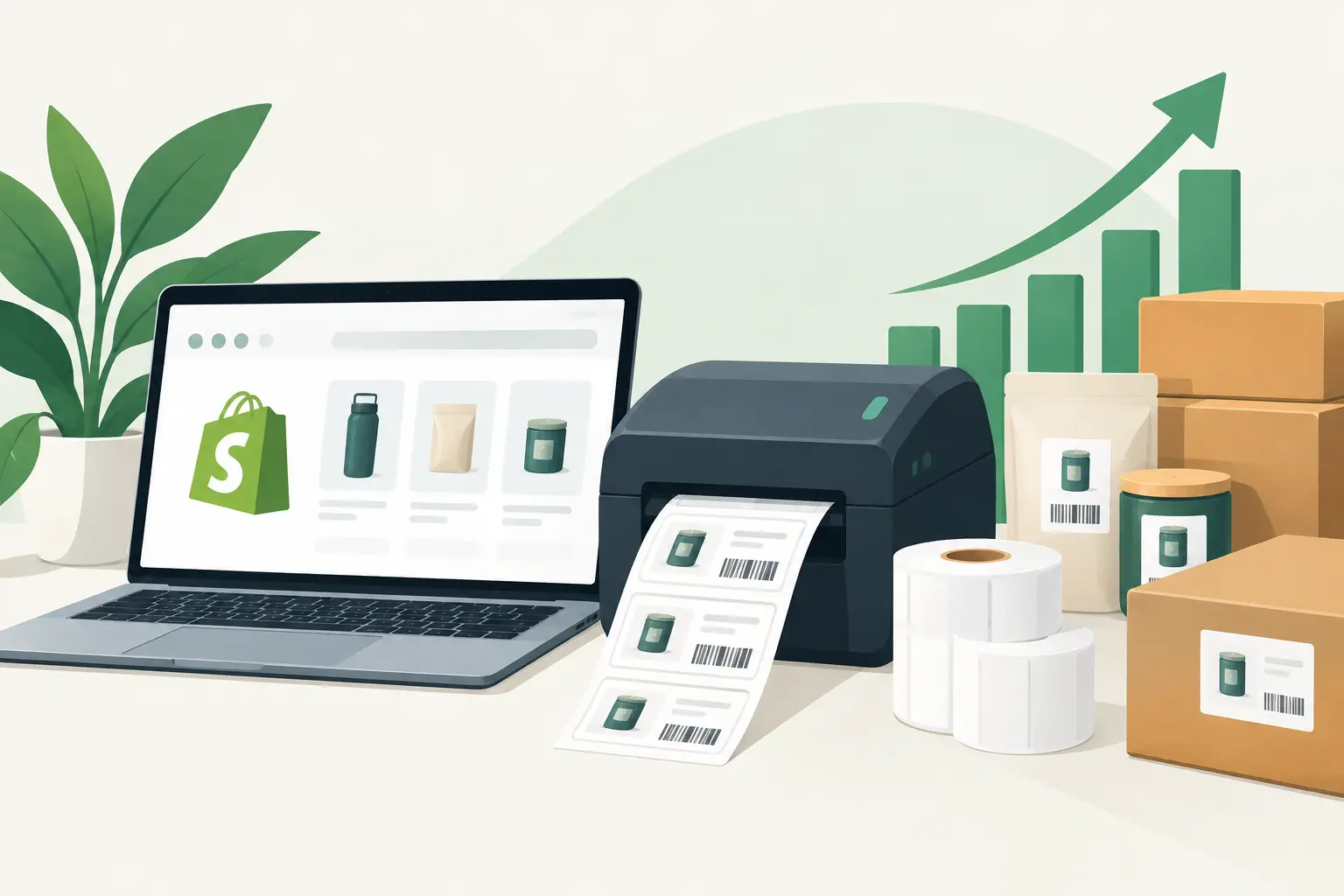
A product label is often the last physical checkpoint before an item reaches a shelf, a packing station, or a customer. When Shopify product label printing relies on copied text, downloaded files, and a printer on someone’s desk, that checkpoint becomes a source of preventable errors. The better approach is to connect Shopify data, a controlled label template, and the local thermal printers your team already uses.
For operations teams, the goal is not simply to print a label. It is to produce the correct label, in the correct format, at the correct location, at the moment inventory is received, picked, packed, or replenished.
What Shopify Product Label Printing Needs to Solve
Shopify holds valuable product information: titles, SKUs, variants, barcodes, prices, inventory references, and order details. A label workflow has to turn those fields into a physical format that scanners and people can read consistently. That sounds straightforward until product variants, multiple warehouses, international text, and different printer models enter the picture.
A practical workflow needs to address four connected requirements:
- A dependable source of product and order data
- Label templates that match the use case and printer media
- A direct path from the cloud-based store to local or network-connected printers
- Controls that prevent duplicate, incomplete, or incorrectly encoded output
If one part is disconnected, the team fills the gap manually. An ecommerce administrator exports product data to a spreadsheet. A warehouse associate searches for a file. Someone adjusts the label layout before printing. Each extra handoff adds delay and makes it harder to identify where a mistake occurred.
Start With the Label’s Operational Job
Before selecting a printer setting or creating a template, define what the label must do. Product identification labels used on warehouse bins need different information than retail shelf labels. A packing label may need an order number and destination reference, while a manufacturing label may need batch, lot, or production-date data.
For most Shopify catalogs, a core product label includes the product title, variant, SKU, and barcode. The barcode may be a UPC, EAN, Code 128 value, or another format required by the scanner and downstream system. A QR code can be useful when teams need to open product documentation, traceability records, or a mobile inventory page, but it should not replace a conventional barcode when existing scanners depend on one.
Keep the human-readable information focused. Long product descriptions often make labels harder to scan visually and force smaller type sizes. If a product name is too long, establish a controlled naming rule or use a shorter warehouse-facing field. The label should help an associate confirm the item in seconds, not recreate the full product page.
Match Label Size to the Workstation
A 4-by-6-inch shipping label, a 2-by-1-inch product label, and a small jewelry tag have very different layout constraints. Select the physical label size based on where it will be applied and how it will be scanned. Then configure the template to that exact media size before testing at scale.
Thermal printing is especially effective for operational labels because it is fast, quiet, and avoids ink management. Direct thermal labels work well for short-life applications such as picking, packing, and shipping. For labels exposed to heat, sunlight, chemicals, or long storage periods, thermal transfer media may be the safer choice. The lower-cost option is not always the lower-cost operational decision if labels fade before inventory moves.
Build One Template, Not a Collection of Workarounds
A standardized browser-based label template gives teams a repeatable source of truth. It should contain fixed design elements, such as a logo or handling icon, alongside dynamic Shopify fields such as title, SKU, variant, barcode, price, or inventory location.
The template should also define barcode size, quiet zones, font hierarchy, alignment, and label dimensions. Quiet zones are the blank areas around a barcode. They are easy to overlook when a layout is compressed, but inadequate spacing can cause scan failures even when the barcode value itself is correct.
Test with real products, not placeholder text. A sample SKU with eight characters may look perfect while a 25-character SKU wraps into the barcode area. Test long titles, unusual variants, low and high prices, and every character set your catalog uses. This matters for global operations that print names in languages beyond basic Latin characters. A system that does not reliably handle character encoding can turn valid product names into unreadable symbols at the printer.
When a single catalog supports multiple workflows, create separate controlled templates rather than asking staff to edit one general-purpose design. For example, a receiving label may include supplier and purchase order references, while a retail label may prioritize price and barcode. Template separation protects consistency without limiting the information each department needs.
Connect Shopify to Local Printers Without Extra Hardware
Shopify is cloud-based, but most thermal printers are connected locally by USB, Ethernet, or Wi-Fi. That cloud-to-printer gap is where many workflows become awkward. Teams may rely on downloads, browser print dialogs, remote desktop access, or dedicated hardware boxes installed at every site.
A cloud print bridge changes the model. It runs on a local computer or network-connected environment, receives authorized print jobs from the browser or integrated system, and sends them to the assigned printer in real time. This allows a Shopify user to initiate printing from a web workflow while the label is produced at the warehouse station where the product is being handled.
TopSale uses its TopBridge desktop application for this connection, avoiding the cost and maintenance burden of dedicated IoT print boxes. The architecture is especially useful for businesses with several packing stations, regional warehouses, or stores that need the same label standards but different local printers.
Printer compatibility should be checked early. Many operations run a mixed fleet, often including TSC, Zebra, Xprinter, or Brother devices. A platform that supports common thermal printer languages such as TSPL and ZPL gives IT teams more flexibility to use existing equipment and replace hardware without rebuilding the entire label workflow.
Assign Printers by Location and Purpose
Do not send every label type to one default printer. Assign devices according to the work being performed. A receiving station might print small SKU labels, while a dispatch station prints larger carton or shipping labels. If a team has more than one warehouse, use clear location and printer naming conventions so a user in New Jersey cannot accidentally send a job to a printer in Texas.
Printer routing should reflect the operational event. A product label can print when inventory is received. A replenishment label can print when stock is transferred. A packing insert or carton label can print when an order reaches a defined fulfillment status. The exact trigger depends on the process, but the principle is constant: print from the event that creates the need, not from a separate manual task list.
Use Batch Printing for Catalog Changes and Receiving
Single-label printing is useful at a packing bench, but catalog changes and inbound inventory often require batches. A new product launch may involve hundreds of SKUs. A supplier delivery may require labels for every variant and quantity received. Printing one at a time is slow and difficult to audit.
Batch workflows let teams select a defined set of Shopify products or prepare an Excel or CSV file with the fields required by the template. The spreadsheet approach is useful when Shopify is not the only data source, such as when lot numbers, production dates, or customer-specific identifiers originate in an ERP, manufacturing system, or supplier file.
The risk with batch printing is scale: a bad data mapping can produce hundreds of wrong labels quickly. Start with a small test batch. Confirm barcode scans, field placement, label quantity, and printer routing. Once validated, use the same saved mapping and template for the full run. Avoid editing column names or template fields during active receiving unless a responsible administrator has approved the change.
Put Scan Testing Into the Process
A label that looks correct is not necessarily a label that works. Scan testing should be part of deployment and ongoing quality control. Test with the scanners used on the floor, from realistic angles and distances. Check that the scan returns the intended SKU or product identifier, with no extra spaces, missing zeros, or substituted characters.
Also test after printer changes, media changes, driver updates, and template revisions. Print darkness, speed, and label material can affect barcode quality. If a barcode is too light, blurred, or compressed, changing the label design alone may not solve the problem. The printer’s calibration and media settings may need attention.
Operational teams benefit from a simple exception path. If a print job fails, staff should know whether to retry the job, select another approved printer, or escalate a device issue. If duplicate labels create inventory confusion, label reprints should be visible and controlled rather than treated as an informal workaround.
Choose Automation Based on Volume and Risk
Not every Shopify store needs fully automated product-label printing on day one. A small catalog with occasional receiving may be well served by an approved template and a controlled batch process. A high-volume warehouse, however, gains more from print triggers tied to inventory, orders, or fulfillment status.
The right level of automation depends on transaction volume, the cost of a mislabel, the number of locations, and the complexity of the product catalog. Highly regulated products, serialized goods, and multi-language labels require more validation than a simple internal SKU sticker. Automation should remove repetitive action while preserving clear controls around data, templates, and printer destinations.
When Shopify product label printing is built as part of the operating workflow, labels stop being an afterthought at the end of the process. They become a dependable instruction layer between your digital catalog and the people moving physical goods. Start with one high-friction station, prove the template and printer route under real conditions, then extend the same controlled workflow wherever product data needs to become a scannable label.