
How Browser to Thermal Printer Printing Works
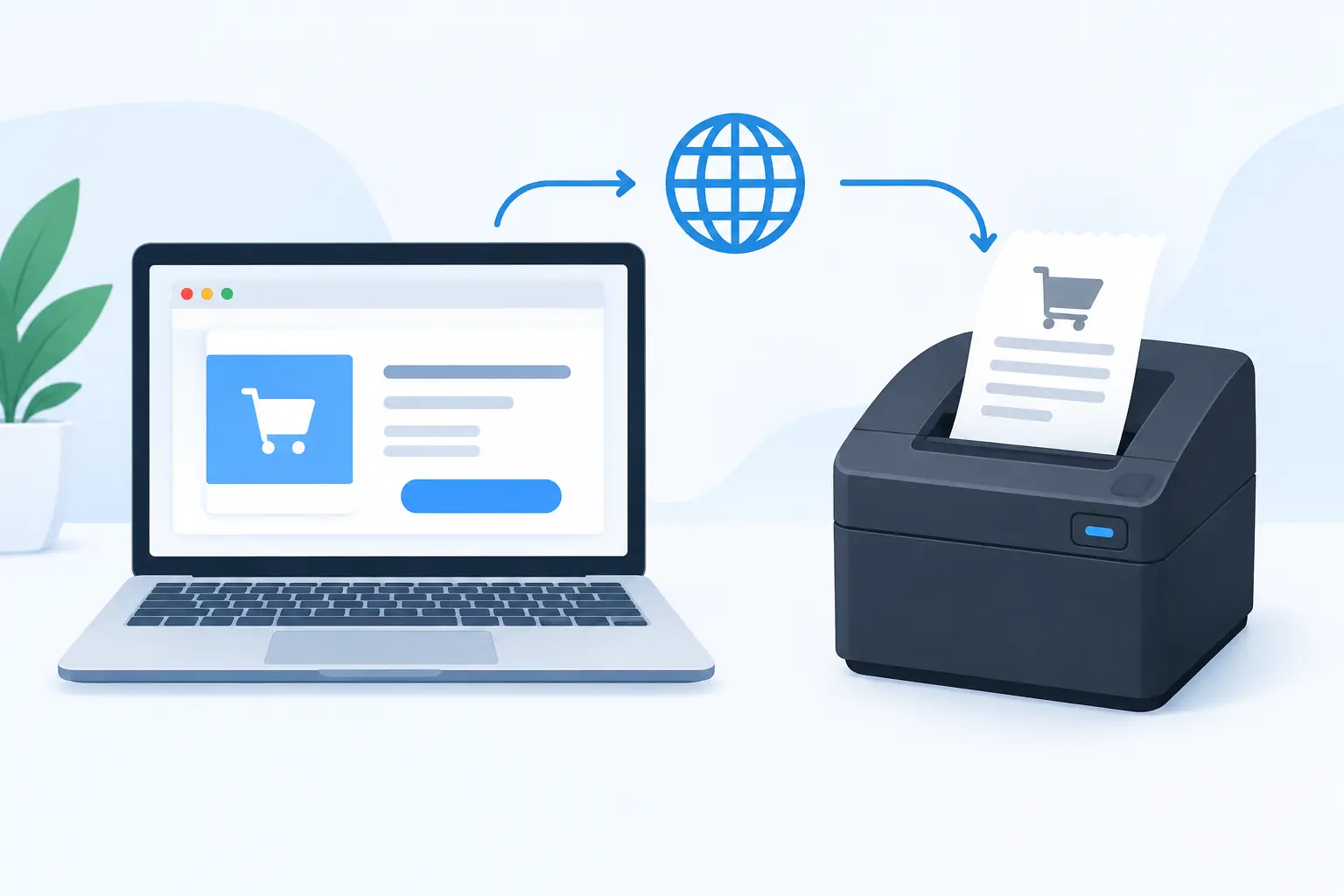
A packing station should not stop because an employee has to download a PDF, find the right printer, adjust scaling, and click Print. A browser to thermal printer workflow removes those manual steps by allowing the cloud application that creates a label to send it to the local device that produces it. For warehouses, retail counters, fulfillment teams, and manufacturing lines, that connection turns printing from a recurring task into part of the process.
The challenge is that browsers are intentionally limited. A web page cannot normally access a USB printer, discover devices on a local network, or send raw ZPL or TSPL commands directly to hardware. That restriction protects users, but it creates a real operational gap for cloud-based systems. Closing the gap requires the right local connection layer, a label format the printer understands, and controls that keep the workflow dependable as volume grows.
Why browser printing fails in operational workflows
Standard browser printing was designed for documents, not production labels. It typically opens a system print dialog, renders the output as a page, and leaves printer selection to the person at the workstation. That can be adequate for an occasional shipping document. It is a poor fit for a team that needs to print a 4 x 6 carrier label, a 2 x 1 inventory label, or a serialized product tag hundreds of times per day.
The costs are not limited to lost seconds. A wrong printer can send a label to an office device. A page-size mismatch can create clipped barcodes. Browser rendering can introduce unwanted margins or scaling. If an operator must choose a printer every time, the workflow also becomes difficult to standardize across shifts and locations.
Direct thermal printing solves a different problem. Instead of sending a visual document and hoping the printer settings are correct, the application sends instructions such as label dimensions, barcode data, text placement, darkness, and print quantity. ZPL and TSPL are common printer languages built for this purpose. They produce fast, predictable output when the label design and printer configuration are aligned.
The browser to thermal printer architecture
A reliable setup has three practical layers: the cloud application, a local print bridge, and the thermal printer. Each has a specific job.
The cloud application is where business events happen. An order is released, inventory arrives, a product is manufactured, or a user selects spreadsheet rows for batch output. It provides the data and determines which label template should be printed.
The local bridge runs on the workstation or local server that can reach the printer. It receives a print request from the browser or cloud platform, identifies the configured device, and sends the printer-ready command to a USB-connected or network-connected thermal printer. This is the component that safely crosses the boundary browsers cannot cross on their own.
The printer receives ZPL, TSPL, or another supported format and produces the physical label. Because the output is sent as printer language rather than a generic browser page, the process can avoid repeated dialogs and reduce dependence on each user’s desktop print settings.
TopSale uses this model through TopBridge, a desktop application that connects cloud-based label workflows to local printers without requiring a separate IoT print box. The approach keeps the cloud system central while leaving the final hardware connection close to the device that needs to print.
What a dependable print request looks like
The best implementations treat printing as a defined business action, not an afterthought. When an order is packed, the system should send a request containing the printer destination, label template, data values, quantity, and protocol or output format. The local bridge should acknowledge receipt, pass the job to the printer, and return a meaningful status where the workflow requires it.
For example, a warehouse management process might generate a carton label from an order number, destination, item count, and carrier barcode. The browser requests the label from the cloud platform. The bridge routes it to the shipping station’s designated Zebra or TSC printer. The printer receives correctly sized ZPL or TSPL instructions and prints immediately.
That predictability comes from configuration. Assigning a default printer by station is usually better than asking users to select one. Using named templates prevents ad hoc design changes. Defining label width, height, density, and print speed at the template or printer level helps avoid a common source of misaligned output.
Design labels for printer commands, not just screen previews
A label can look correct in a browser preview and still fail at the printer. Thermal devices have fixed dot densities, printable areas, media sensors, and command-language differences. A design should be tested on the actual printer model and the actual label stock used in operations.
Barcode quality deserves particular attention. A barcode that is too small, too dense, or placed too close to the edge may scan inconsistently even when it appears sharp on screen. Quiet zones, module width, label orientation, and darkness settings all affect scan reliability. QR codes require similar care, especially when the label contains small text, logos, or multilingual content.
Character encoding is another operational detail that becomes visible only after deployment. Businesses shipping globally or labeling products in multiple languages need the printer workflow to preserve accented characters, Asian scripts, and other non-English text. If the application, bridge, and printer do not use compatible character sets, labels may print with missing characters or unreadable symbols. This should be validated before rollout, not discovered at the packing bench.
Choosing between print methods
Not every use case needs raw printer commands. A browser print dialog can still make sense for low-volume office labels, one-off documents, or workflows where users must review the output before printing. PDF output can also be useful when the same label needs to be archived, emailed, or produced on a non-thermal printer.
For repeated operational labels, direct commands are usually the better choice. They are faster, more consistent, and better suited to barcode printing. The trade-off is that the setup is more deliberate: printer models, protocols, dimensions, and connectivity need to be configured correctly.
A local bridge also introduces a dependency on the workstation or server where it runs. That device must remain online and able to reach the printer. For a single shipping desk, a desktop installation may be enough. For multi-station warehouses or distributed locations, IT teams may prefer a managed local server or a defined workstation standard. The right model depends on uptime requirements, network design, and who owns support when a printer is offline.
Build for exceptions, not only successful prints
A fast print path is valuable only if it is manageable when something goes wrong. Paper runs out. A network printer changes IP address. A USB cable is disconnected. A user selects the wrong stock. These are normal physical-world failures, and software should make them visible instead of silently treating every submitted job as complete.
At minimum, operations teams should know which printer is assigned to each station, whether the bridge is connected, and whether the printer accepted the job. For higher-volume environments, job logs and reprint controls help resolve disputes without recreating labels manually. A useful workflow lets staff reprint a known order or batch while preserving the original label data and avoiding duplicate records.
Security matters as well. The bridge should accept print requests only from authorized sources, and printer assignments should be controlled by role or location. A cloud print workflow should not give every browser user unrestricted access to every printer on the network. This is particularly relevant when multiple customers, facilities, or business units share the same platform.
A practical rollout path
Start with one label type and one physical station. Confirm the printer model, connection method, media size, and command language. Build the template using real production data, then test barcode scans, text encoding, print alignment, and reprints under normal workstation conditions.
Next, connect the local bridge and map the station to a specific printer. Test the complete path from browser action to printed label, including what happens when the printer is unavailable. Only then expand to batch printing, additional templates, ecommerce or ERP events, and more locations.
For spreadsheet-driven work, validate a small CSV or Excel sample before printing an entire batch. Check column mapping, empty-field handling, duplicate records, and quantity rules. For developers embedding printing into another application, define a stable print payload and keep printer-specific details in configuration rather than hard-coding them into every business workflow.
A browser-connected thermal printer is most valuable when it disappears into the operation. The warehouse associate should see the right label arrive at the right station when the work is ready, while the technical team retains the control needed to keep that outcome consistent.