
How ZPL Label Printing Software Fits Operations
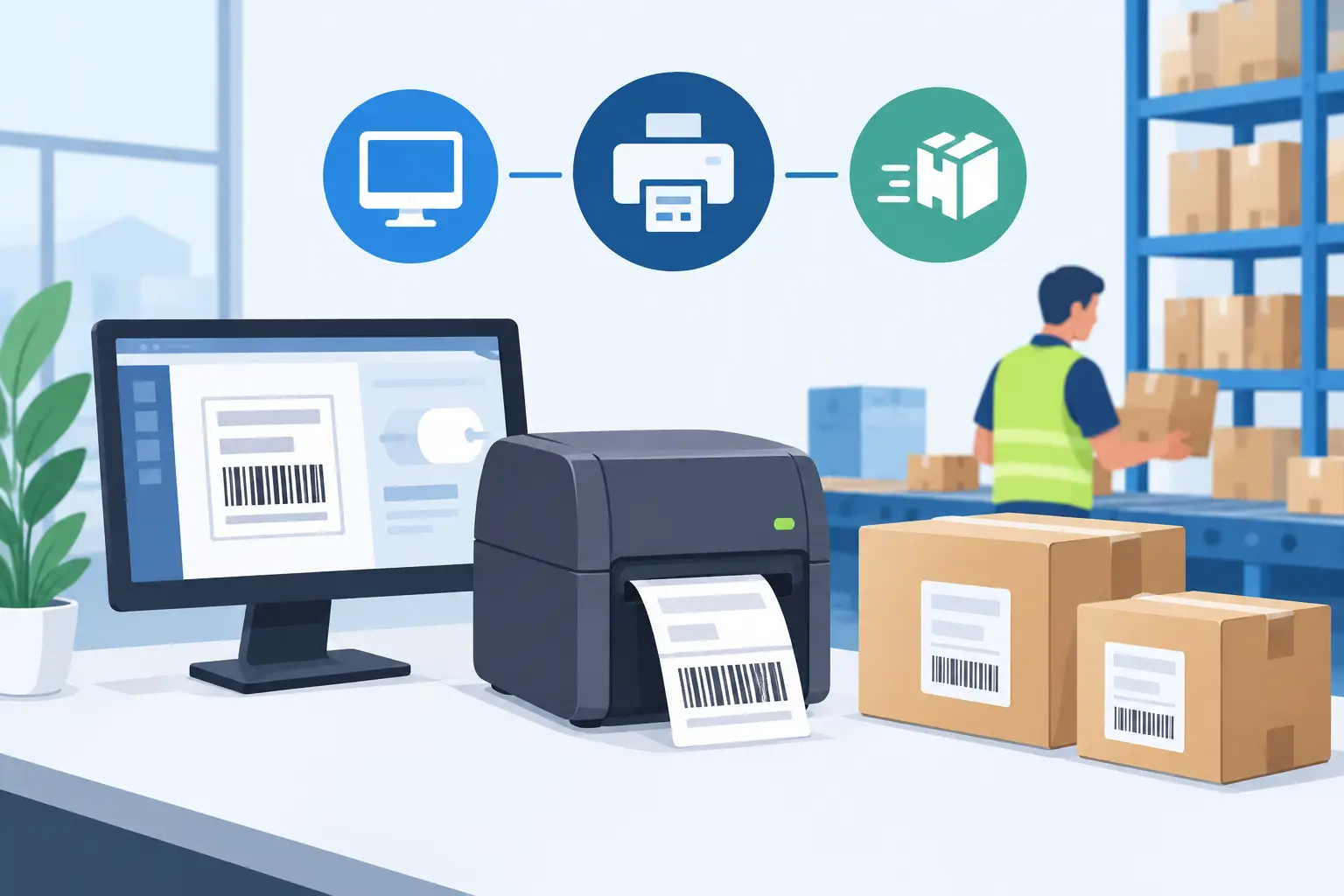
A shipping station can be fully staffed, inventory can be accurate, and orders can be ready to leave – yet the workflow still stops when the label printer is disconnected from the system that created the order. ZPL label printing software solves that practical gap by turning label data from cloud applications, spreadsheets, and business systems into printer-ready commands for local thermal devices.
For operations teams, the question is not simply whether a printer can produce a barcode. It is whether the right label prints at the right station, with the right data, at the moment work needs to happen. That requires a dependable connection between cloud-based workflows and physical printers without creating another hardware project for IT to maintain.
What ZPL Label Printing Software Actually Does
ZPL, or Zebra Programming Language, is a printer command language used to describe what should appear on a thermal label. A ZPL file can define label dimensions, text fields, barcodes, QR codes, fonts, positions, and print settings. The printer reads those commands and produces the label directly.
ZPL label printing software provides the operational layer around those commands. It gives teams a way to design labels, connect data sources, select printers, and trigger printing from the systems that run daily work. Instead of manually building printer code for every shipping label, bin label, product tag, or pallet identifier, users can work from reusable templates and controlled data fields.
This distinction matters. ZPL itself is not a complete label workflow. It does not provide a browser-based design experience, pull order information from Shopify, map spreadsheet columns, or send a print job from a cloud application to a printer sitting behind a warehouse firewall. Software fills those gaps.
For a small operation, that may mean importing a CSV file and printing a batch of shelf labels. For an ERP-driven warehouse, it may mean automatically printing a location label when a receiving transaction is completed. The same foundation supports both use cases, but the integration requirements are very different.
The Cloud-to-Printer Problem
Most modern business systems run in the cloud. Most thermal printers do not. They are connected by USB, Ethernet, or local Wi-Fi to a workstation or local network. A web browser can create a label, but it cannot reliably send raw ZPL directly to every local printer without a secure local connection method.
This is where many label workflows become unnecessarily complicated. Businesses may rely on manual downloads, shared folders, browser print dialogs, remote desktop sessions, or dedicated IoT print boxes. Each approach can work in a limited environment, but each adds friction when printing needs to scale across workstations, facilities, or customer locations.
A cloud-to-local print bridge provides a more direct architecture. The user or business system creates the print job in the cloud. A lightweight desktop application running on the local computer receives that job and sends it to the selected printer in real time. There is no need to expose printers directly to the public internet, and no additional print box needs to be purchased, deployed, monitored, or replaced.
TopSale uses this approach through TopBridge, which connects browser-based workflows to USB, network-connected, and local thermal printers. The result is a workflow that remains accessible from the cloud while respecting the realities of local hardware.
Why raw printer access is not enough
Sending ZPL to a printer is only one part of the job. Operations teams also need to know which template was used, which data was applied, whether the correct printer was selected, and whether the output remains readable across different printer models.
A useful platform centralizes those decisions. It keeps label layouts consistent, gives staff a repeatable print process, and reduces the risk that someone edits a barcode field or label size in an unmanaged local file. This is especially valuable when multiple teams print similar labels for receiving, picking, manufacturing, retail, or fulfillment.
Design Labels Around Data, Not Manual Edits
The strongest label workflows begin with structured data. A SKU, product name, batch number, location, order number, and barcode value should come from a reliable source rather than being typed into a layout one label at a time.
A browser-based label editor lets nontechnical users create the visual structure: label size, text blocks, barcodes, QR codes, images, and variable fields. The template can then accept data from an Excel spreadsheet, CSV file, ecommerce order, ERP record, or custom application. Each row or transaction becomes a print-ready label without repeated design work.
This is where batch printing becomes a major efficiency gain. A warehouse team receiving 500 items does not need to generate 500 individual labels. They can upload a prepared spreadsheet, map columns to the template, validate a sample, and print the batch. For recurring work, the same template and field mapping can be reused each time.
Data validation deserves attention before printing. A missing barcode value, a product name that exceeds the available space, or a quantity field formatted incorrectly can create expensive rework. Good ZPL label printing software should make it easy to preview variable data before a full batch runs. A preview is not just a design feature – it is a control point for operational accuracy.
Printer Compatibility and Character Encoding Matter
ZPL is widely associated with Zebra printers, but real-world printer fleets are rarely that simple. A growing operation may have Zebra units at one facility, TSC printers in another, Xprinter devices at packing stations, and Brother printers in a retail environment. Protocol support, print density, media handling, and available fonts can vary by model.
Before standardizing on a platform, confirm how it handles the protocols used by your devices. Direct support for ZPL and TSPL can reduce the need to replace functional printers simply because the label workflow changed. It also gives IT teams more flexibility when selecting hardware for new locations.
International character support is another issue that is easy to overlook until labels fail in production. Product names, customer information, addresses, and compliance text may include accented characters, Asian languages, Arabic, Cyrillic, or other non-English scripts. If the software, printer, and encoding settings are not aligned, output may contain question marks, blank fields, or corrupted text.
For global operations, multilingual output is a core requirement, not a cosmetic detail. Test representative labels on the actual printer models used in each region. A template that looks correct in a browser preview may still need font or encoding adjustments before it is ready for production.
Choose the Right Level of Integration
The right implementation depends on how labels enter your workflow. A team that prints occasional asset tags may only need a label editor and spreadsheet import. An ecommerce operation may benefit from a Shopify connection that pulls order data into shipping or product-label templates. A company running Odoo may need printing tied directly to inventory, manufacturing, or delivery transactions.
Software teams have another set of needs. They may want to embed label design and printing into their own application through an SDK, rather than directing users to a separate print portal. In that case, the important questions are whether templates can be controlled programmatically, whether print jobs can be generated from application data, and how the local printer bridge is installed and managed.
Avoid overengineering the first deployment. A custom integration is valuable when labels must be triggered automatically from a business event or offered inside a customer-facing product. It is less useful when a spreadsheet-based batch workflow already solves the immediate problem. Start with the process that produces the most manual effort or the highest error rate, then expand from there.
A Practical Deployment Path
A reliable rollout usually starts with one label type and one operational location. Choose a workflow with clear data ownership, such as inventory bin labels from a CSV export or packing labels from an order system. Build the template, test the output on the target printer, and document the expected data fields.
Next, install the local print bridge on the workstation or server that can access the printer. Confirm that the printer is available, the correct media size is loaded, and a test job reaches the device without browser dialog boxes or manual file handling. This is the point to set naming conventions for printers, templates, and locations. Clear names prevent errors as more stations are added.
Then test exceptions deliberately. Print a long product name, an item with special characters, a blank optional field, and a high-volume batch. Check barcode readability with the scanners used on the floor, not only by visual inspection. A technically successful print is not operationally successful if a scanner cannot read it at receiving or checkout.
Once the workflow is stable, connect the next system or location. This staged approach gives operations and IT teams a controlled way to scale without pausing production for a large, all-at-once hardware rollout.
Make Printing Part of the Process
The best label workflow is usually the one employees barely think about. A receiving clerk completes a transaction and the correct item label prints. A warehouse administrator imports a spreadsheet and produces a validated batch. An ecommerce team sends order data to the correct packing-station printer without downloading files or switching between applications.
That level of execution comes from treating label printing as connected infrastructure rather than a standalone desktop task. When templates, data, protocol support, and local printer connectivity are designed together, thermal printing becomes a reliable extension of the systems that keep operations moving.