
Why Web Printing Fails in Real Operations
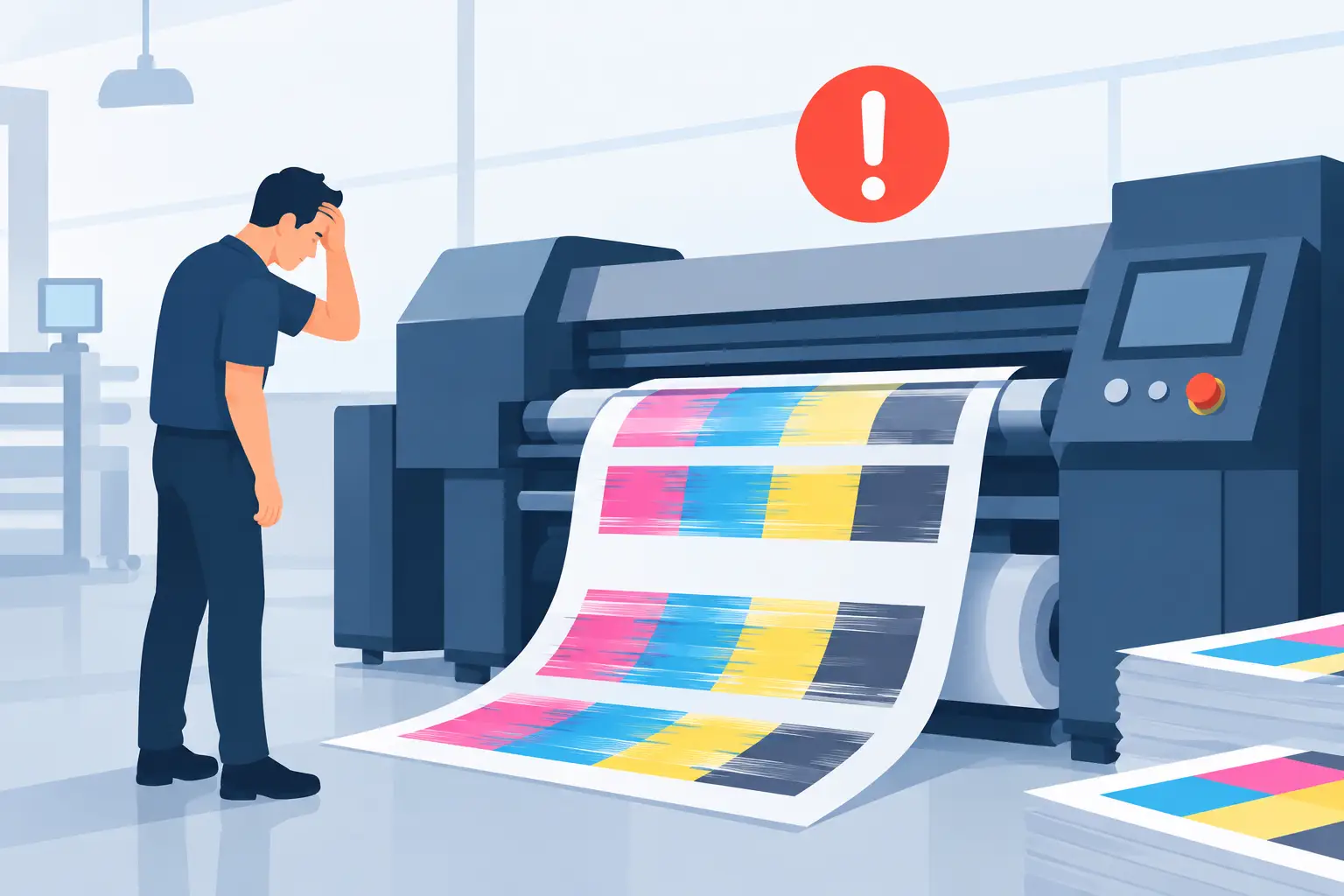
A label prints perfectly from a browser during a test. Then the warehouse team starts a batch of 800 orders, a picker changes workstations, or the printer reconnects to Wi-Fi. Nothing comes out. This is why web printing fails: a browser can create a print request, but it does not naturally control the local devices, protocols, and operating conditions required to produce a reliable thermal label.
For operations teams, this is not a minor user-experience problem. A missing shipping label can stop an order at packing. A misprinted barcode can create an inventory discrepancy. An incorrectly encoded product label can make an international shipment unreadable. The real requirement is not simply browser printing. It is dependable execution from the business system to the correct printer, at the correct time, using the correct label data.
Why Web Printing Fails at the Local Device Layer
Web applications run in a security sandbox. That design protects users, but it also limits direct access to local hardware. A browser generally cannot open a raw connection to a thermal printer, select a printer automatically without user interaction, or send printer-native commands such as ZPL or TSPL whenever an order status changes.
Standard browser printing was built around documents and office printers. It works reasonably well when a user opens a PDF, chooses a printer, confirms settings, and prints one page. Warehouse and fulfillment workflows are different. They need background printing, exact label dimensions, printer selection by workstation, rapid batch output, and predictable handling when a printer is offline.
The browser print dialog becomes a bottleneck in these workflows. It requires a person to confirm an action that should happen automatically, and its settings can vary by computer, browser, printer driver, and operating system. A 4 x 6 shipping label may be scaled, rotated, clipped, or routed to the wrong device even though the web application generated the right content.
The browser does not know operational context
A cloud application can know that order 10482 needs a carrier label. It may not know which packing station is handling that order, which local printer is available, or whether the printer at Station 3 uses ZPL, TSPL, or a Windows driver. Those details exist inside the local network and on the workstation, not in the browser session alone.
Without a controlled connection between the cloud workflow and the print environment, teams fall back on manual printer selection. That may be acceptable for a small office. It becomes unreliable when multiple teams, locations, printers, and label formats are involved.
Why Web Printing Fails When Labels Are Treated Like Documents
A thermal label is not just a small PDF. It is an operational instruction that must be rendered at a specific physical size and printed with enough contrast and precision for scanners, carriers, and receiving systems.
PDF and image-based workflows introduce conversion steps. The application creates a document, the browser passes it to the operating system, a driver interprets it, and the printer produces an output. Every step can change scale, margins, orientation, font behavior, or barcode density. The result may look close enough to a person while failing a scanner.
Printer-native languages reduce that uncertainty. ZPL and TSPL describe label elements in terms the printer understands directly: barcode type, coordinate position, font, density, and print commands. Sending native commands is often faster than sending a rendered document, especially for high-volume batch jobs. The trade-off is that native printing requires protocol awareness and a reliable way to reach the printer from the cloud application.
Barcode quality is a data and rendering issue
A barcode can fail even when the source data is correct. Quiet zones may be too small. Module widths may not match the print resolution. A browser may substitute a font, or a driver may rescale the image. QR codes can become unreadable when the source artwork is compressed or printed too small.
The same applies to human-readable text. A label template that looks correct in a designer can overflow at the printer when a product title is longer than expected, a lot number is present, or a different language requires more characters. Reliable systems test labels against real data ranges and real printers, not just sample records.
Encoding Breaks Global Label Workflows
International operations expose another common reason web printing fails: character encoding is handled inconsistently between the application, print bridge, driver, and printer firmware.
A product name with an accented character, a customer address in Japanese, or an Arabic warehouse instruction may display correctly in a browser but print as question marks, empty boxes, or corrupted characters. The browser is Unicode-capable, but the printer may require a configured code page, a supported font, or a specific command sequence.
There is no single universal fix because printer models and command languages differ. A practical print architecture needs to preserve the original text, apply the correct encoding for the printer, and use fonts that support the intended character set. This is especially important for businesses shipping across regions or producing compliance, retail, and asset labels in multiple languages.
Network Conditions Make Print Failures Intermittent
The most difficult print problems are often intermittent. A printer may work during setup and fail later because its IP address changed, a workstation slept, a VPN disconnected, a local firewall blocked a service, or Wi-Fi dropped for a few seconds.
These issues are frustrating because users experience them as random. From an infrastructure perspective, they are predictable consequences of placing cloud software, local networks, desktop operating systems, and hardware devices in one workflow without clear connection management.
A useful print connection needs to identify whether a job was received by the local bridge, delivered to the printer, and accepted or rejected by the device. It should also make failures visible. “Print failed” is not enough for IT or operations. They need to know whether the problem is authentication, a stopped desktop service, an unavailable printer, a malformed command, or a paper and ribbon issue.
The Missing Component Is a Local Print Bridge
A dependable cloud-to-printer workflow usually needs a local component that can communicate with both sides. The cloud application creates a job and applies business logic. A desktop print bridge running within the local environment receives that job, selects the configured printer, and sends it using the appropriate connection and protocol.
This approach avoids the cost and maintenance burden of dedicated IoT print boxes while preserving the local access a browser lacks. It also enables printing from the workflows teams already use: a Shopify order event, an Odoo fulfillment action, an Excel import, a CSV batch, or an embedded print function in a custom application.
TopSale uses this model through TopBridge, which connects browser-based and cloud workflows to local or network-connected thermal printers. The goal is not to make a browser behave like printer hardware. It is to give cloud software a controlled path to the devices that do the physical work.
Configuration still matters
A print bridge is not a substitute for operational setup. Each print station still needs a defined printer, tested label dimensions, network access, and appropriate driver or native protocol configuration. Teams should also decide what happens when a job cannot print: retry automatically, queue for review, route to a backup printer, or stop the related fulfillment step.
Those choices depend on the operation. A high-volume shipping station may require a backup device and immediate alerting. A retail back office may prioritize simple manual recovery. The right design reflects the cost of a missed label in that workflow.
Build for Print Execution, Not Just Print Requests
The strongest label-printing workflows separate design, data, routing, and execution. Label templates should be centrally managed so users are not editing layouts independently at each workstation. Data should come from the business system or a controlled spreadsheet import. Printer routing should map labels and stations to known devices. Execution should be handled by software that can operate inside the local environment.
Before deployment, test the cases that occur in real operations: long SKU names, duplicate order submissions, large batches, disconnected printers, label stock changes, multilingual addresses, and simultaneous jobs from multiple users. Test scan quality after printing, not just visual appearance on screen.
This is also where direct protocol support can make a meaningful difference. If a Zebra, TSC, Xprinter, or Brother device is part of the process, verify the commands, media settings, and character requirements against that specific printer. Compatibility is not merely a logo on a device list. It is repeatable output under production conditions.
Web printing becomes reliable when it is designed as infrastructure rather than treated as a button in a browser. Once the connection between cloud data and local execution is deliberate, label printing can keep pace with the work it supports instead of interrupting it.