
How to Automate Inventory Tag Creation at Scale
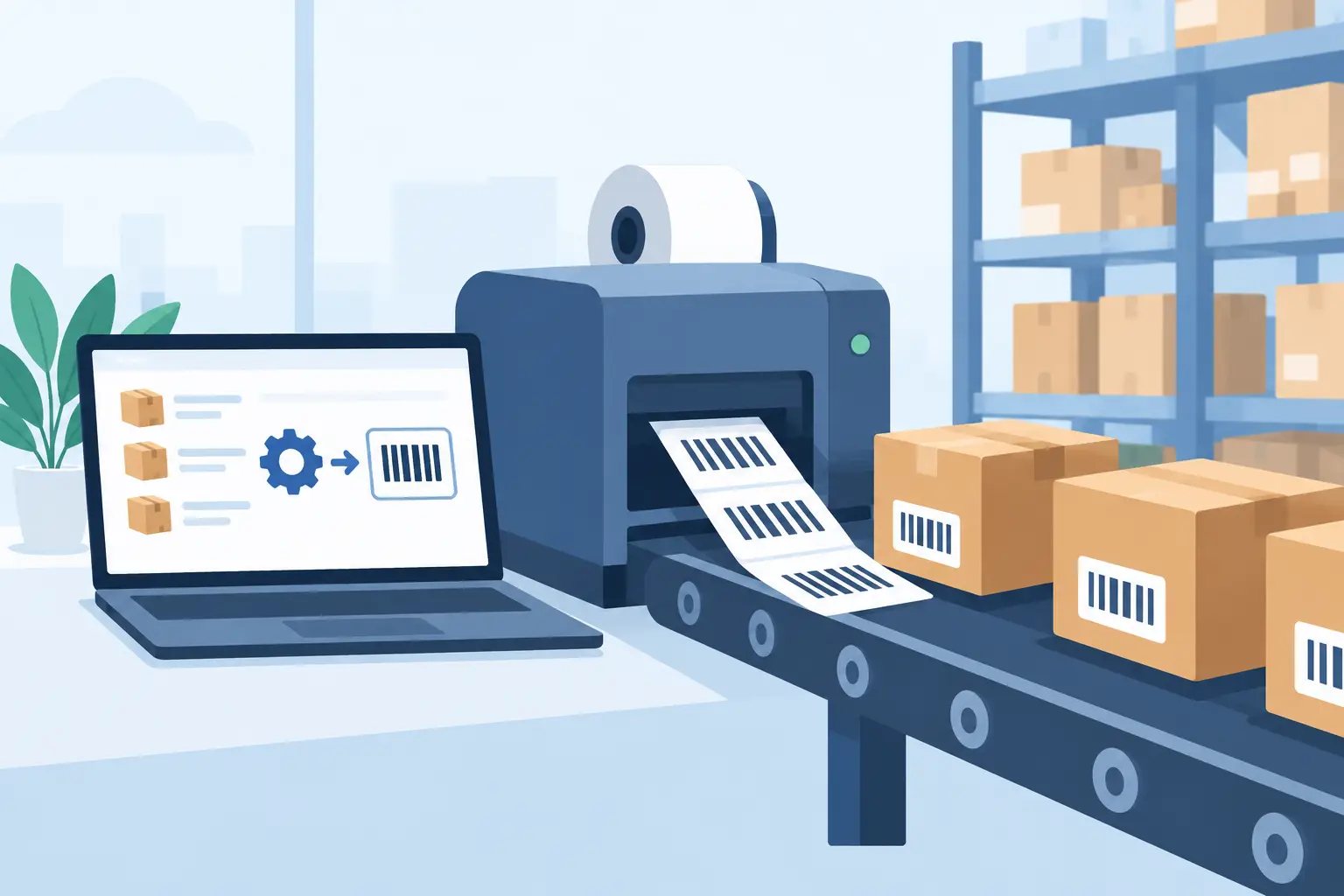
A receiving team should not have to stop a pallet, open a spreadsheet, copy item details into a label file, and hope the right printer is online. When you automate inventory tag creation, tags are generated from the same product, order, or ERP data that runs the operation. The result is faster receiving, more accurate stock identification, and fewer delays between a business event and a physical label.
For warehouses, retailers, manufacturers, and ecommerce teams, the real goal is not simply printing faster. It is building a dependable path from live business data to the correct local thermal printer without adding more hardware, manual steps, or exceptions for each site.
Why manual inventory tag creation breaks at scale
Manual tag production can appear manageable when stock volumes are low. A team exports a CSV, edits a label template, prints a batch, and moves on. That workflow starts to fail when item counts grow, locations multiply, or product data changes after the export.
The cost is not limited to the time spent designing or printing a tag. A wrong SKU, stale price, missing lot number, or mismatched barcode can create downstream work in picking, replenishment, shipping, returns, and stock counts. A label that cannot be scanned is not a minor formatting issue when it holds up a receiving lane.
Distributed operations face another problem: cloud software does not automatically communicate with a printer on a local network. Many teams address this by introducing print servers, dedicated IoT boxes, or site-specific workarounds. Those devices add cost and another point of failure. The better approach is to connect cloud workflows to existing local or network-connected printers through software designed for that job.
Automate inventory tag creation from the source of truth
The most reliable automation begins with a simple principle: tag fields should come from the system that owns the data. That may be an ERP, warehouse management system, ecommerce platform, manufacturing application, or a controlled spreadsheet process.
For a standard inventory tag, the source record may provide the SKU, product name, barcode value, unit of measure, variant, supplier code, bin location, batch number, and received date. A finished-goods tag may also include a production order, serial number, expiration date, or quality status. The label template controls where those values appear, while the source system controls what they are.
This separation matters. Operations teams can adjust the visual layout without asking developers to rebuild an integration. At the same time, IT and software teams can maintain a predictable data contract without allowing users to manually alter the information that appears on the tag.
A cloud label editor is particularly useful here because it gives nontechnical users browser-based control over layouts, barcode settings, fonts, and print dimensions. The template can be standardized across locations, then populated automatically using variable data. If the product catalog changes, the next tag pulls the updated record rather than relying on a previously downloaded file.
Design templates for scanning, not just appearance
An inventory tag has a job: it must be readable by people and scannable by devices in the conditions where work happens. This is why a template that looks correct on a screen can still perform poorly on the warehouse floor.
Start with the barcode standard required by the workflow. Code 128 is common for internal SKU and logistics identifiers, while UPC or EAN may be required for retail products. QR codes can carry more data, but they are not automatically the right choice for every process. If workers only need a short SKU, a linear barcode may be faster to scan and easier to fit on a small tag.
Text hierarchy is equally important. Put the product name, SKU, location, or lot number where the worker expects to find it. Use a font size that fits the working distance and lighting conditions. Leave adequate quiet space around barcodes, and confirm that the selected label stock and printer resolution can reproduce the code cleanly.
International operations should also verify character encoding early. Product names, customer references, and location fields may include accented characters, Chinese, Japanese, Korean, Arabic, or other non-Latin scripts. A printer that receives the wrong encoding can output unreadable characters even when the browser preview looks correct. Encoding support is an operational requirement, not a cosmetic feature.
Choose the right trigger for each workflow
Automation does not always mean every event prints immediately. The correct trigger depends on when the tag is needed and who needs to control the release.
For receiving, a tag can print when a purchase order line is received or when a worker confirms goods at a receiving station. For ecommerce inventory, printing may happen when a new product is created, a SKU is updated, or a replenishment job is released. In manufacturing, the trigger may be the completion of a work order or a quality approval.
Batch workflows still have a place. If a team needs to relabel 5,000 items during a seasonal change, an Excel or CSV file can be an efficient controlled input. The difference is that the spreadsheet should feed an approved template and automated print job, not become a manual design environment. This keeps the batch process fast while reducing formatting errors.
For software teams, an SDK or API-driven print action can be a better fit. The application sends only the required tag data and template reference, then records whether the print job was delivered. This is useful when tag creation is part of a larger workflow such as receiving, picking, assembly, or returns processing.
Connect cloud workflows to local thermal printers
The technical gap between a browser application and a warehouse printer is where many label projects become difficult. Browsers are designed to protect local devices, so a cloud application typically cannot send raw thermal print commands directly to an on-premises printer without a bridge.
A desktop connector such as TopBridge solves that problem by maintaining a connection between the cloud workflow and authorized local or network printers. The business system initiates the job in the cloud. The connector receives it at the site and sends it to the selected printer in real time. There is no dedicated IoT print box to purchase, configure, monitor, and replace.
Printer compatibility should be validated before rollout. Thermal environments often include a mix of Zebra, TSC, Xprinter, Brother, and other devices, sometimes across several locations. Direct support for TSPL and ZPL protocols helps preserve barcode quality and printer-specific capabilities instead of treating thermal printing like a standard office print job.
It is also worth deciding how printer selection will work. A fixed receiving station may always print to one device. A regional warehouse may route jobs by site, user, zone, or label type. The rule should be explicit. If an operator must select from a long printer list for every job, automation has only shifted the manual decision to a different screen.
Build controls for exceptions and reprints
A practical automated print workflow needs clear behavior when something goes wrong. Printers run out of media, network connections drop, and operators occasionally need another copy. Ignoring those realities creates shadow processes that eventually replace the automation.
Each job should have an identifiable record tied to the source transaction, template version, printer, timestamp, and status. This gives a supervisor a way to answer basic questions quickly: Was the receiving tag sent? Which template was used? Did it print at the intended location? Was it reprinted?
Reprint permissions require judgment. In a low-risk internal bin-label workflow, broad access may be appropriate. For serialized stock, regulated inventory, or high-value goods, a reprint should be logged and may require a reason or approval. The right control depends on the consequence of duplicate labels.
Before deploying broadly, test under actual operating conditions. Scan printed tags with the devices used on the floor. Test long product names, special characters, missing optional fields, and peak-volume batch jobs. Confirm that a printer offline event is visible to the team responsible for resolving it. A successful sample print is useful, but a repeatable exception process is what makes the workflow dependable.
Start with one high-friction tag workflow
The fastest path to useful automation is rarely a full label overhaul. Choose one workflow where manual tag creation is slowing work or creating errors, such as inbound pallet tags, inventory bin labels, or product SKU labels for new catalog items.
Define the data source, approve one template, assign the printer-routing rule, and test the complete path from transaction to scan. Once that workflow is stable, the same cloud-to-printer architecture can support additional label types without introducing a new device stack for every use case.
A well-designed inventory tag workflow does more than save clicks. It makes the physical movement of goods reflect the same data decisions already happening in the systems your operation depends on.