
Barcode Label Maker Online for Faster Operations
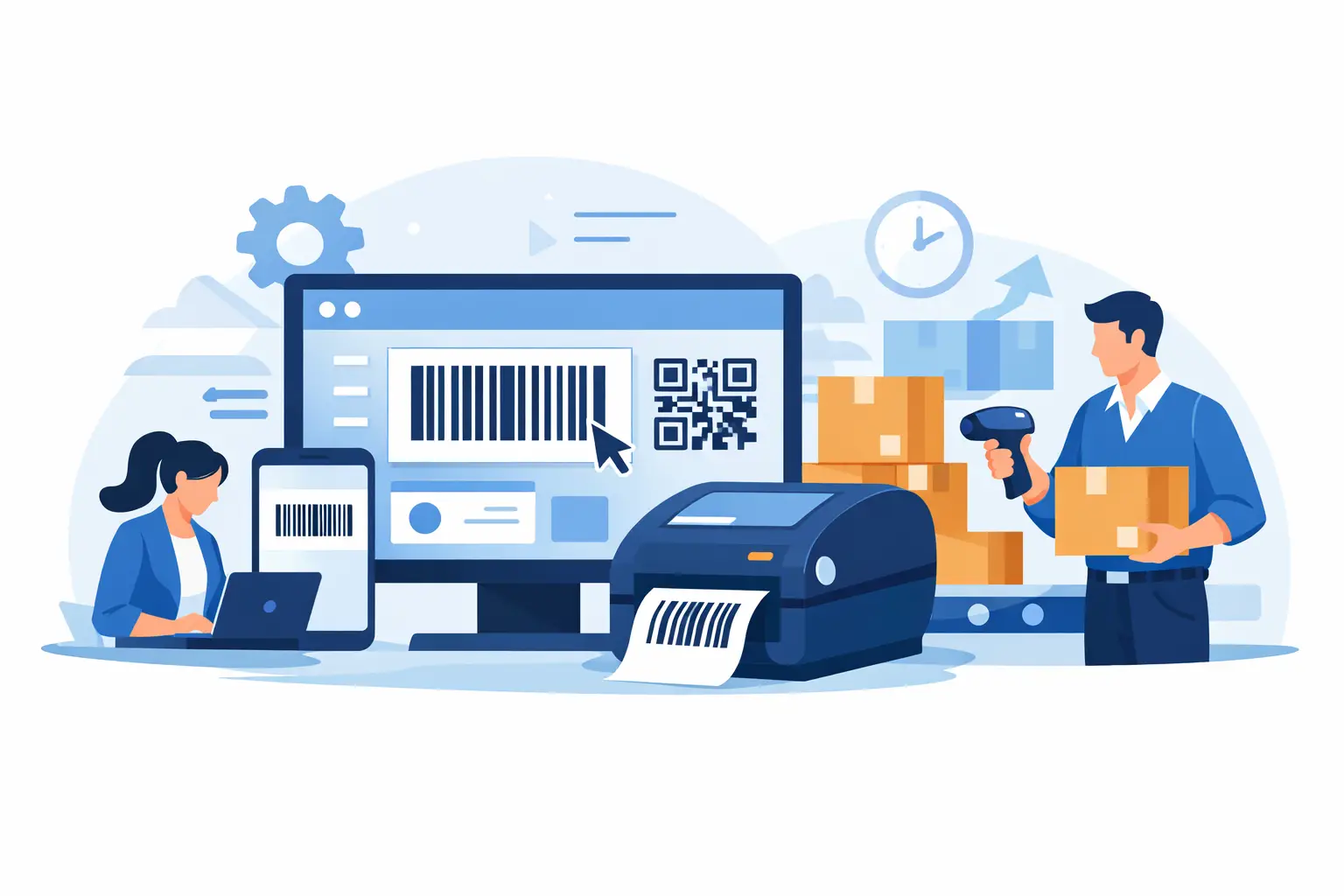
A mislabeled carton can stop a pick, trigger a customer return, or create an inventory discrepancy that takes hours to trace. A barcode label maker online should do more than place bars and text on a page. For operational teams, it needs to connect the label design, the source data, and the thermal printer sitting on a warehouse bench, retail counter, or packing station.
What a Barcode Label Maker Online Should Actually Solve
Basic label generators are useful for creating a single barcode image. They become limiting when the work involves changing SKUs, product names, lot numbers, locations, prices, or shipping data. Operations do not run on one-off labels. They run on repeatable workflows that need to produce accurate output under time pressure.
A practical online barcode label maker should let users build a label in a browser, select the right barcode format, connect variable fields, and send the finished job to a local or network-connected printer. That last step matters. If a user must download files, move them to another computer, or manually select print settings every time, the process is still disconnected.
The goal is not simply to make labels available online. The goal is to make cloud-based label creation usable at the point where physical work happens.
Start With the Label and the Data Together
A label layout and its data source should be planned as one system. A warehouse location label may need a Code 128 barcode, large human-readable location text, a warehouse zone, and a check digit. A food or manufacturing label may need a batch number, production date, expiration date, and a QR code for traceability. Ecommerce labels often combine product identifiers with order-specific details.
Choose the Barcode Format for the Job
Code 128 is a common option for internal inventory, logistics, and warehouse labels because it supports letters, numbers, and a broad character set in a compact symbol. UPC and EAN are generally used for retail products that must scan at point of sale. QR codes are useful when a label needs to carry more information or direct workers to a digital record.
The right format depends on the scanner, the downstream system, and the space available on the label. A barcode that technically prints but cannot be scanned consistently is not operationally useful. Test labels with the scanners used on the floor, not only with a phone camera at a desk.
Treat Spreadsheet Fields as Print Variables
For batch work, a spreadsheet or CSV file should supply the changing values. Instead of creating 500 labels one at a time, map columns such as SKU, product name, bin location, quantity, or lot number to fields in the label template. The system then generates a label for each matching row.
This approach reduces repetitive work, but it also makes data cleanup essential. A missing SKU, inconsistent date format, or unexpected special character can affect an entire print run. Review a small sample before sending high-volume batches to the printer.
The Cloud-to-Printer Connection Is the Real Test
Browser-based design is straightforward. Printing from a cloud application to a local thermal printer is where many workflows become complicated. Browsers are intentionally limited in how they access local devices, and warehouse printers are often connected by USB, Ethernet, or a local network rather than exposed directly to the internet.
Some platforms solve this with dedicated print appliances or IoT boxes. Those devices can add hardware cost, deployment time, network configuration work, and another point of failure. They may fit specialized environments, but they are not always necessary.
A desktop bridge application provides a more direct model. It runs on the computer or workstation that can access the local printer, receives authorized jobs from the cloud platform, and sends them to the selected device in real time. With TopSale, TopBridge performs this connection without requiring an additional IoT print box.
For operations teams, the benefit is practical: label templates and data can be managed centrally while printing remains close to the physical process. A receiving clerk can print pallet labels at the dock. A packer can print order labels at a packing station. An inventory team can create a batch from a spreadsheet and send it to the appropriate printer without rebuilding the design.
Build a Reliable Print Workflow in Four Steps
The best implementation is usually simple enough for daily users and structured enough for IT to support.
- Create the label template in the browser. Set the label dimensions, barcode type, text fields, fonts, and print density for the media in use. Save templates by purpose, such as product, shelf, carton, pallet, or return label.
- Connect live or uploaded data. For a quick batch, use Excel or CSV data. For ongoing workflows, connect the source system so that order, inventory, or production information reaches the template without manual re-entry.
- Install and configure the local print bridge. Assign the correct printer, confirm its connection, and run a test label. This is also the point to verify that the printer is using the expected label stock and calibration settings.
- Print, scan, and monitor exceptions. Confirm the output scans correctly and that text, dates, and quantities match the source record. If a print fails, users need a clear way to identify whether the issue is the data, the bridge connection, the printer status, or the label configuration.
This structure gives nontechnical teams a clear path for everyday work while allowing IT teams to control devices, templates, integrations, and access.
Printer Language and Compatibility Affect Daily Reliability
Thermal printers are not interchangeable just because they use similar label rolls. Many business printers rely on command languages such as ZPL or TSPL to define label layout, barcode settings, fonts, and print behavior. A platform that understands those protocols can produce output that is closer to the printer’s native capabilities instead of treating the device like a generic office printer.
That matters for print speed, barcode clarity, and predictable placement. It also matters when a business operates a mixed printer fleet. A company may have Zebra printers in one distribution center, TSC units at receiving stations, Xprinter devices for lightweight operations, and Brother printers at retail locations.
Compatibility should be validated at the model level, especially for older hardware or shared network printers. Ask whether the platform supports the printer protocol, how it handles label dimensions and darkness settings, and whether print jobs can be routed to specific devices or locations.
Do Not Overlook International Characters
Labels often carry more than English product names. Supplier information, customer details, ingredient lists, and destination data may include accented characters, Asian scripts, Arabic text, or other multilingual content. If the system, template, and printer do not agree on character encoding, printed text can become corrupted or unreadable.
This is easy to miss during a basic proof of concept using English-only test data. It becomes a serious issue when labels are used across global suppliers, international fulfillment, or multilingual retail environments. Test realistic records early, including the actual characters that appear in production data.
The same principle applies to fonts. A font that looks correct in the browser may not be available natively on a printer. Confirm whether the platform renders the label appropriately or supports the printer fonts needed for the job.
Where Integrations Create the Most Value
Manual spreadsheet printing is a strong starting point, particularly for stocktakes, relabeling projects, or periodic production runs. But recurring label work is often better connected to the system that already owns the data.
An ecommerce team may need labels generated from Shopify product or order activity. An ERP-driven warehouse may need print actions tied to Odoo inventory movements, receiving transactions, or manufacturing records. Software teams may need an SDK so their own application can create and send labels without forcing users to switch tools.
The trade-off is implementation effort. An integration requires field mapping, printer routing rules, permissions, error handling, and testing. For high-frequency printing, those steps are worth it because they remove copy-and-paste work and prevent mismatches between the business record and the physical label. For a small, occasional batch, Excel or CSV printing may be the faster operational choice.
Questions to Ask Before Selecting a Platform
Evaluate a barcode label maker online against the actual conditions on your floor, not a generic feature checklist. Can it print from the cloud to your local devices? Does it support the protocols and printer brands already in use? Can teams import spreadsheet data for batches? Can it handle the barcode symbologies, label sizes, and languages required by your products and markets?
Also consider who will maintain the workflow. Warehouse users need templates that are hard to misuse. IT teams need manageable deployment, clear printer connectivity, and fewer hardware components to support. Developers need integration options that do not require rebuilding a print stack from scratch.
The right system makes label printing feel like a normal step in receiving, picking, packing, manufacturing, or retail operations. When a worker can generate the correct label from the correct data and send it to the correct printer without leaving the process, printing stops being a workaround and becomes dependable operational infrastructure.